
How Idle Pilot Works
Idle Pilot is a cloud-based tool that keeps your Slack status active during your configured work hours. Set it up once in about 2 minutes, then your presence runs automatically - even when your laptop is off.
7-day free trial. No credit card. 14-day money-back guarantee.
What Idle Pilot Does
Schedule-Based Presence
Your Slack status follows your work hours, not your device activity.
Cloud-Powered
Runs from our servers. Works even when your laptop is closed or offline.
Presence Only
Never reads or sends messages. Only manages your online/away status.
1. Connect your Slack workspace
One click on Chrome, or a quick manual setup on any browser. Uninstall the extension when you're done.
Chrome Extension
The fastest way to connect. Install the extension, click connect, and you are done.
- 1-click connection
- Under 1 minute setup
- Extension can be removed after setup
Manual Setup
For Firefox, Safari, Edge, or any non-Chrome browser. Follow our guided flow.
- Works with any browser
- About 5 minutes setup
- Step-by-step instructions
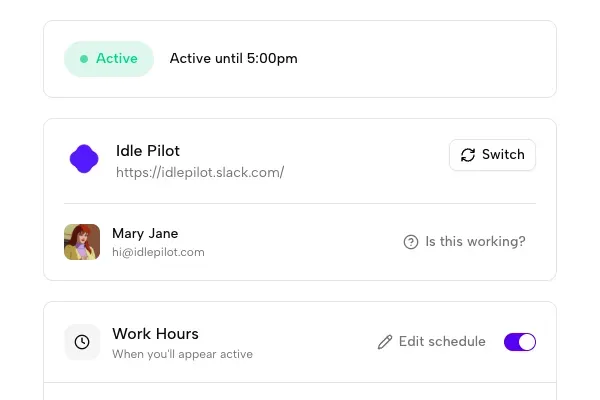
Your Idle Pilot Dashboard
See your current status, workspace info, and controls at a glance
What you will see
- Current Status Indicator
Green dot shows you are active, with "Active until X:XX" showing when your schedule ends.
- Workspace Info
See which Slack workspace is connected and your profile name.
- Quick Controls
Toggle Idle Pilot on/off instantly. Access schedule settings with one click.
2. Pick your work hours
Mon–Fri 9–6, custom per day, lunch breaks, vacation mode. Your timezone, handled automatically.
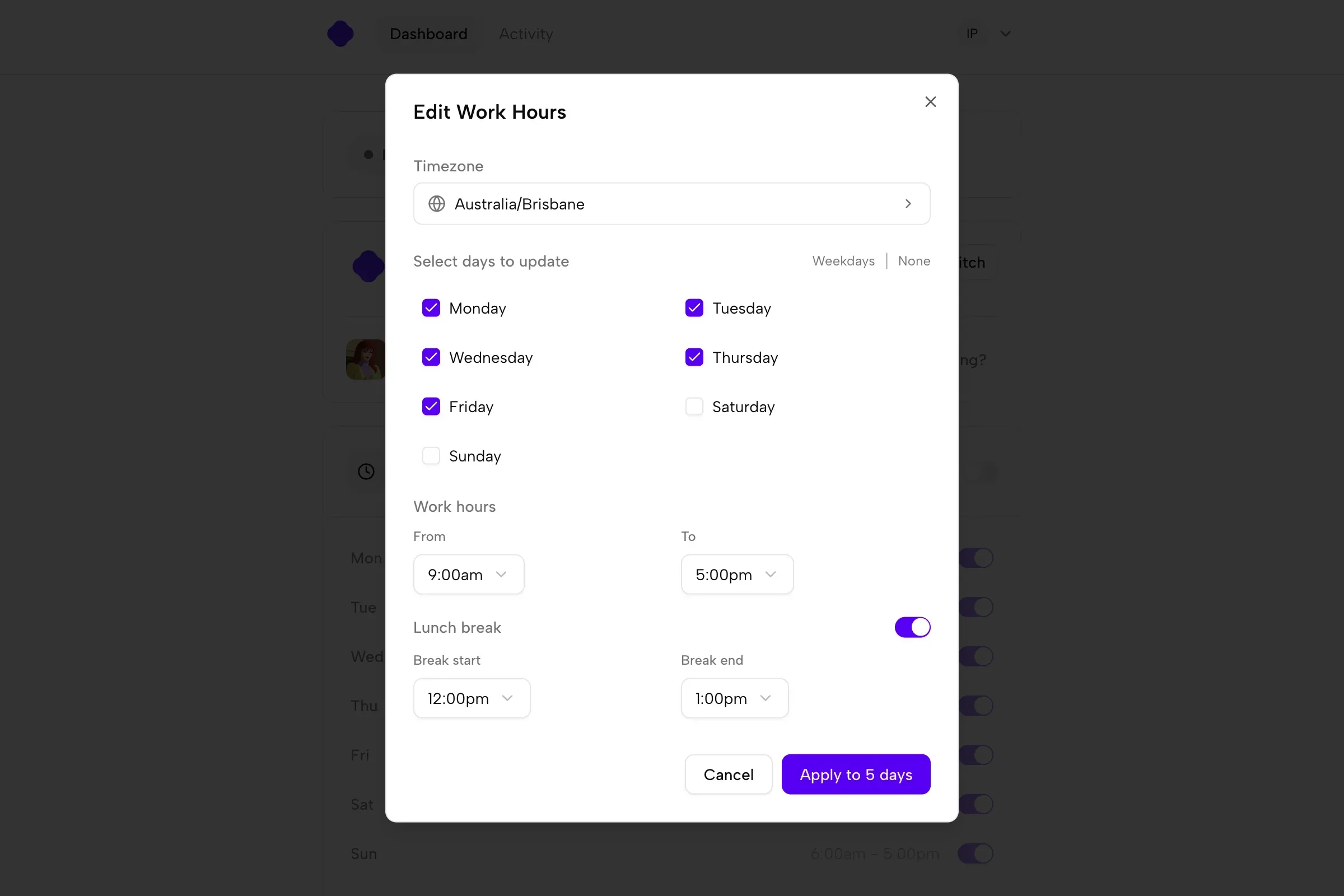
Schedule Settings
- Set Your Timezone
Auto-detected from your browser, but you can change it manually.
- Per-Day Configuration
Each day has its own on/off toggle with custom start and end times.
- Lunch Breaks
Add an optional lunch break for any day. Your status goes away during the break.
- Save and Apply
Changes apply immediately. No restart or reconnection needed.
Vacation Mode
Automatically pause your schedule when you are out of office
How Vacation Mode Works
Smart Slack status detection for hands-free pausing
- 1Enable Vacation Mode
Turn on the feature in your Idle Pilot settings.
- 2Select trigger statuses
Choose which Slack statuses should pause your presence.
- 3Automatic pausing
When a matching event is active, Idle Pilot pauses. When it ends, your schedule resumes.
Activity History
Review your presence patterns with a visual timeline
Reading Your Timeline
Understand your presence at a glance
- Active
Periods when your Slack status was set to online by Idle Pilot.
- Break
Scheduled pauses during your work hours.
- Paused
Periods when Idle Pilot was manually paused or auto-paused by Vacation Mode.
- Away
Periods outside your scheduled work hours.
Setup & Onboarding FAQ
Common questions about getting started with Idle Pilot
How long does setup take?
Most users complete setup in about 2 minutes. The Chrome extension makes it even faster with 1-click Slack connection.
Do I need admin approval to connect Slack?
No. Idle Pilot connects using your personal Slack account, not a workspace app. No admin approval or IT involvement required.
What if I do not use Chrome?
No problem. We have a manual setup flow that works with Firefox, Safari, Edge, or any browser. It takes about 5 minutes.
Can I change my schedule after setup?
Yes. You can adjust your work hours, lunch breaks, and timezone anytime from your Idle Pilot dashboard.
What happens if I turn off Idle Pilot?
Your Slack presence immediately returns to normal Slack behavior (based on your device activity). You can turn Idle Pilot back on anytime.
Does Idle Pilot work if my laptop is off?
Yes. Once connected, Idle Pilot runs from our cloud servers. Your laptop can be closed, offline, or completely off.
How do I know if it is working?
Your Idle Pilot dashboard shows your current status (green dot with "Active until X:XX"). You can also check your activity history.
Can I connect multiple Slack workspaces?
Currently, Idle Pilot supports one connected workspace at a time. You can disconnect and connect a different workspace whenever you need to switch.
Close your laptop. The schedule keeps going.
Set your hours once. Stop checking if you're still green.

— r/remotework
The green dot follows your schedule, not your keyboard.