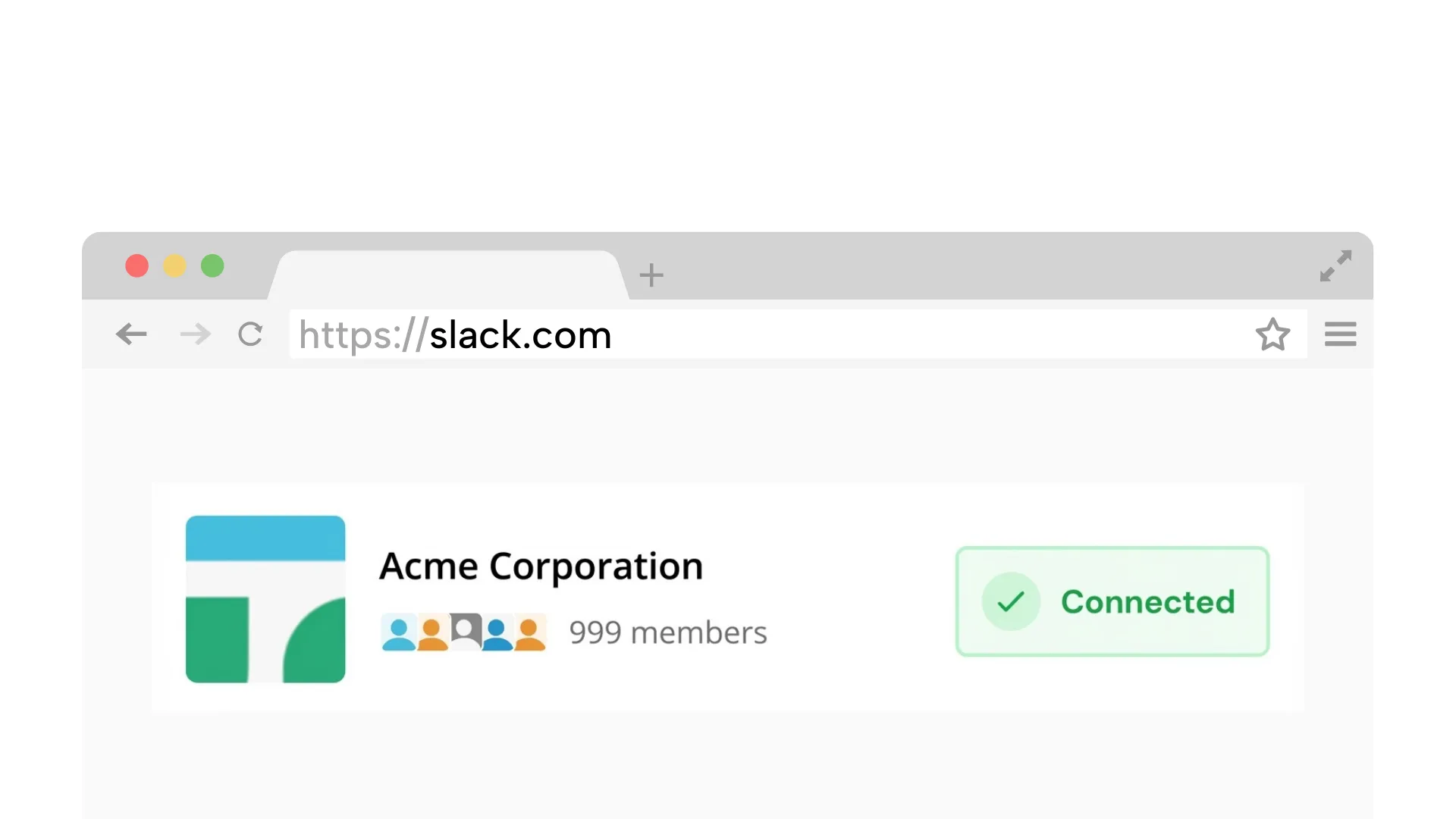
Requires a desktop browser to connect Slack once.
1. Connect your Slack workspace
Securely link your workspace. We simulate a browser connection, so you do not need to install any apps or bots.
On Chrome? 1-click connection (optional)
Keep Slack status active and automate Slack status during work hours, even when your laptop is closed.
No admin approval | Presence only | No desktop app
Takes 2 minutes. Cancel anytime.
Trust signals
Minimal access, clear boundaries, no device babysitting
Keep your status green during the hours you choose, even if your laptop is closed.
No always-on laptop. A cloud worker keeps your presence consistent.
Connect with your own account. No workspace app or bot required.
Does not read messages. Pause or change your schedule anytime.
Setting up scheduled Slack presence is simple:
Takes about 2 minutes on desktop
Securely link your workspace. We simulate a browser connection, so you do not need to install any apps or bots.
On Chrome? 1-click connection (optional)
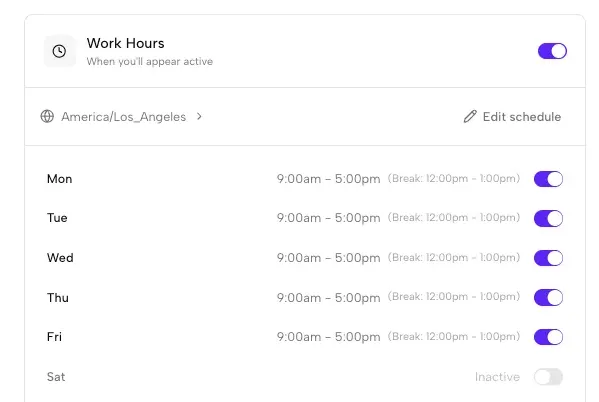
Set the days and hours you want to appear active. We handle time zones automatically.
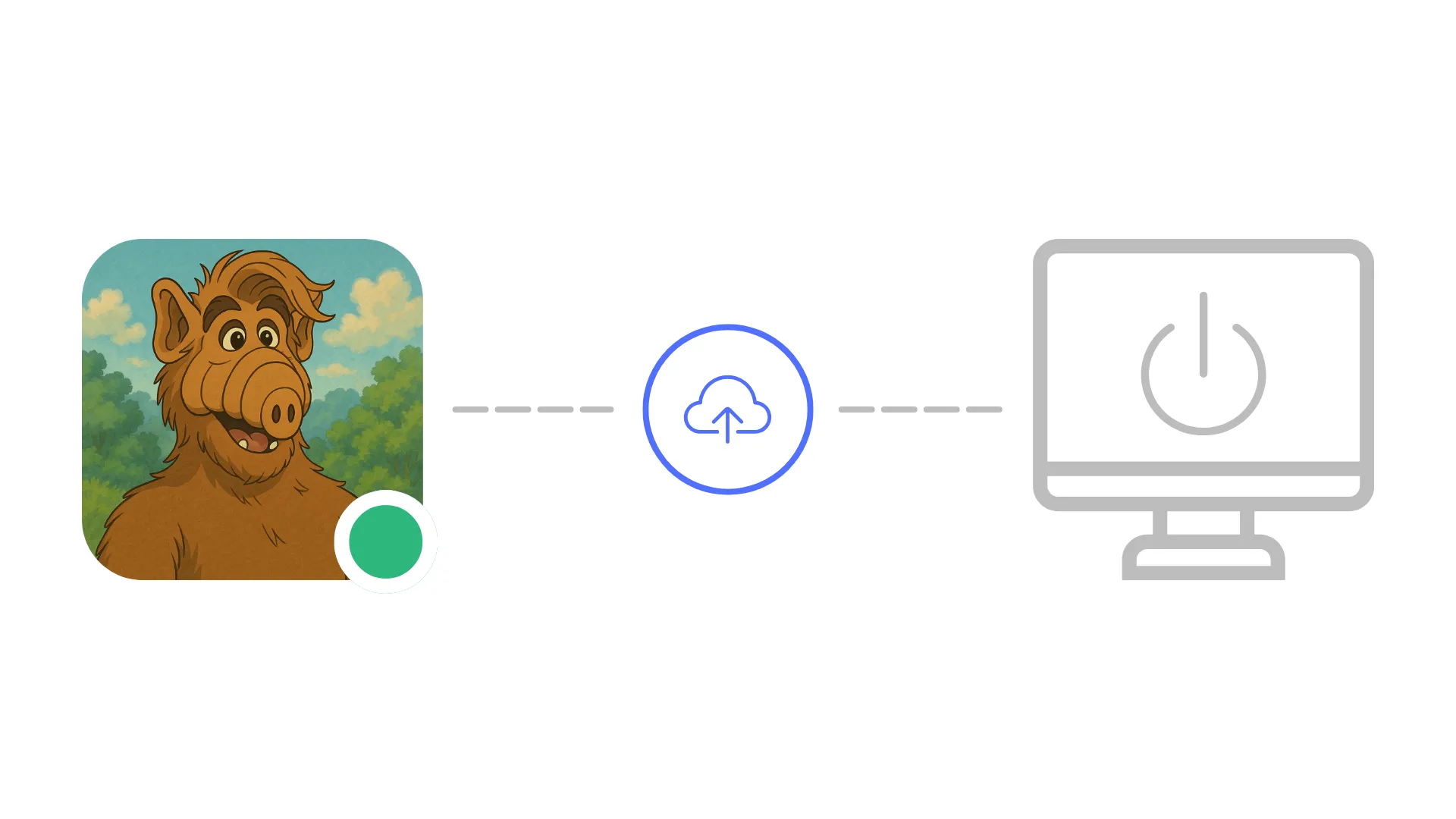
Close your laptop or lose internet. Idle Pilot keeps your status green during your scheduled hours.
7-day free trial. Cancel anytime.
Reliable, policy-friendly, and aligned with real work hours
Breaks when your laptop sleeps or the tab is suspended. Easy to forget and hard to manage.
Hardware and scripts can violate policies and create security concerns.
Works when your laptop is closed and stays aligned with real work hours.
Each guide links back here for scheduling
Why Slack flips you away and the safest ways to prevent it.
Read guideA clear, schedule-first way to stay active without babysitting Slack.
Read guideA practical comparison of options and the trade-offs for each.
Read guideA cautious, policy-first guide for staying active without getting flagged.
Read guideQuick answers before you connect
A Slack presence scheduler is a tool that keeps your status active during the work hours you define. Instead of relying on mouse movement or keeping your laptop open, a presence scheduler maintains your Slack session from the cloud so your green dot stays visible to teammates on your schedule.
A presence scheduler maintains an active Slack web session from cloud servers during your chosen work hours. This sends the same heartbeat signals that Slack expects from a connected client, keeping your status green without any device activity, browser tabs, or local software running.
Yes. Because the scheduler runs from remote servers, it does not depend on your device at all. Your Slack presence stays active during your scheduled hours whether your laptop is open, closed, asleep, or completely powered off.
No. You connect using your own Slack account. There is no workspace bot or admin install required. Nothing is added to the workspace that other members or admins would see.
No. Idle Pilot only maintains your presence indicator. It does not read, send, or access any messages, channels, or files in your workspace. The scope is limited to availability status.
Yes. You can pause, adjust your schedule, or sign out at any time from the Idle Pilot dashboard. Changes take effect immediately, giving you full control over when you appear active on Slack.
A presence scheduler uses your own Slack web session, similar to leaving a browser tab open. You should follow your workspace policies and Slack's terms of service. Since no bot or app is installed, there is typically nothing for admins to review.
Last updated: March 2026
Connect once, set your hours, and stop worrying about the green dot.