1. Connect your Slack workspace
Securely link your workspace. We simulate a browser connection, so you do not need to install any apps or bots.
On Chrome? 1-click connection (optional)
Compare your options and choose a schedule-based approach without device hacks.
No admin approval | Presence only | No desktop app
No hardware. No admin approval.
Trust signals
Schedule-based presence keeps you active without risky workarounds
Cloud scheduling keeps presence consistent without local workarounds.
Connect with your own account. No workspace bot required.
Keeps your status active even if devices sleep.
No message access. Just reliable availability signals.
It makes availability follow chosen hours without depending on an always-on laptop
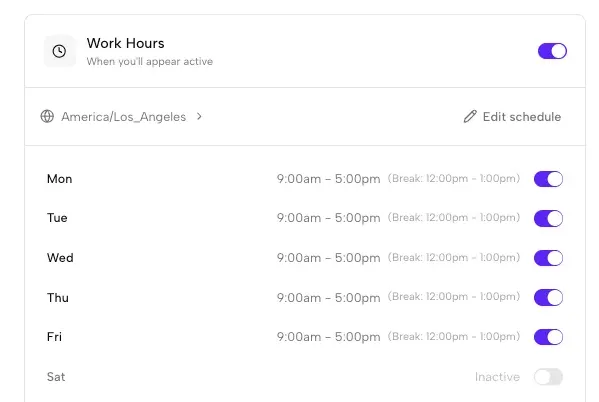
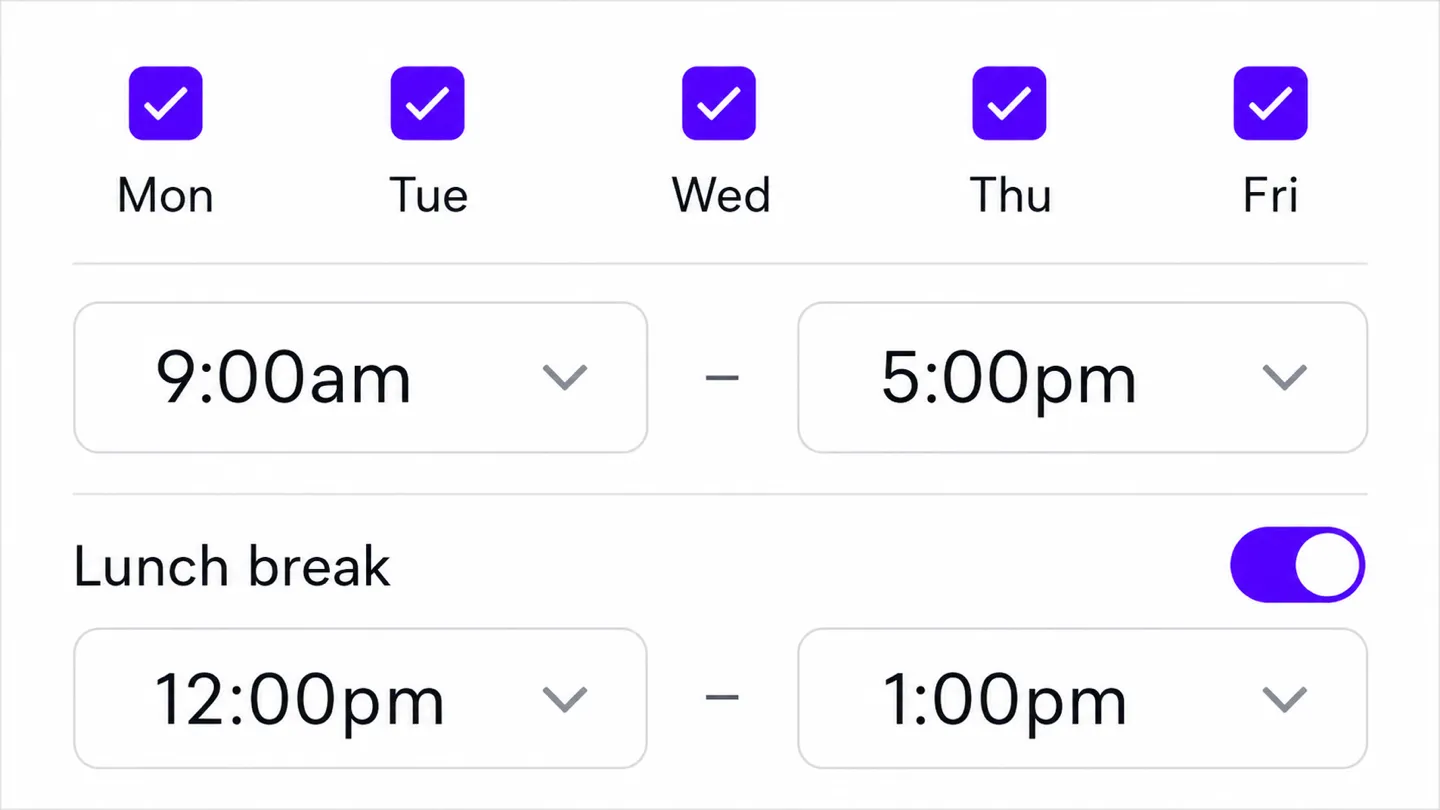
You choose work days, start and end times, timezone, and optional breaks. Outside that window, normal Slack availability behavior resumes.
An off-device session can continue while a laptop is asleep, closed, or offline. Browser extensions and keep-awake apps cannot cover those states.
A cloud option avoids local hardware and scripts, but it still connects to your Slack account. Compare permissions, session visibility, controls, and company policy before choosing one.
Compare device hacks, bots, and schedule-based options
Require hardware or scripts, can conflict with IT policies.
Often need admin approval and add extra integrations to manage.
Works even when devices are offline and keeps schedules explicit.

The safer alternative to device-based schedulers works like this:
Takes about 2 minutes on desktop
Securely link your workspace. We simulate a browser connection, so you do not need to install any apps or bots.
On Chrome? 1-click connection (optional)
Set the days and hours you want to appear active. We handle time zones automatically.
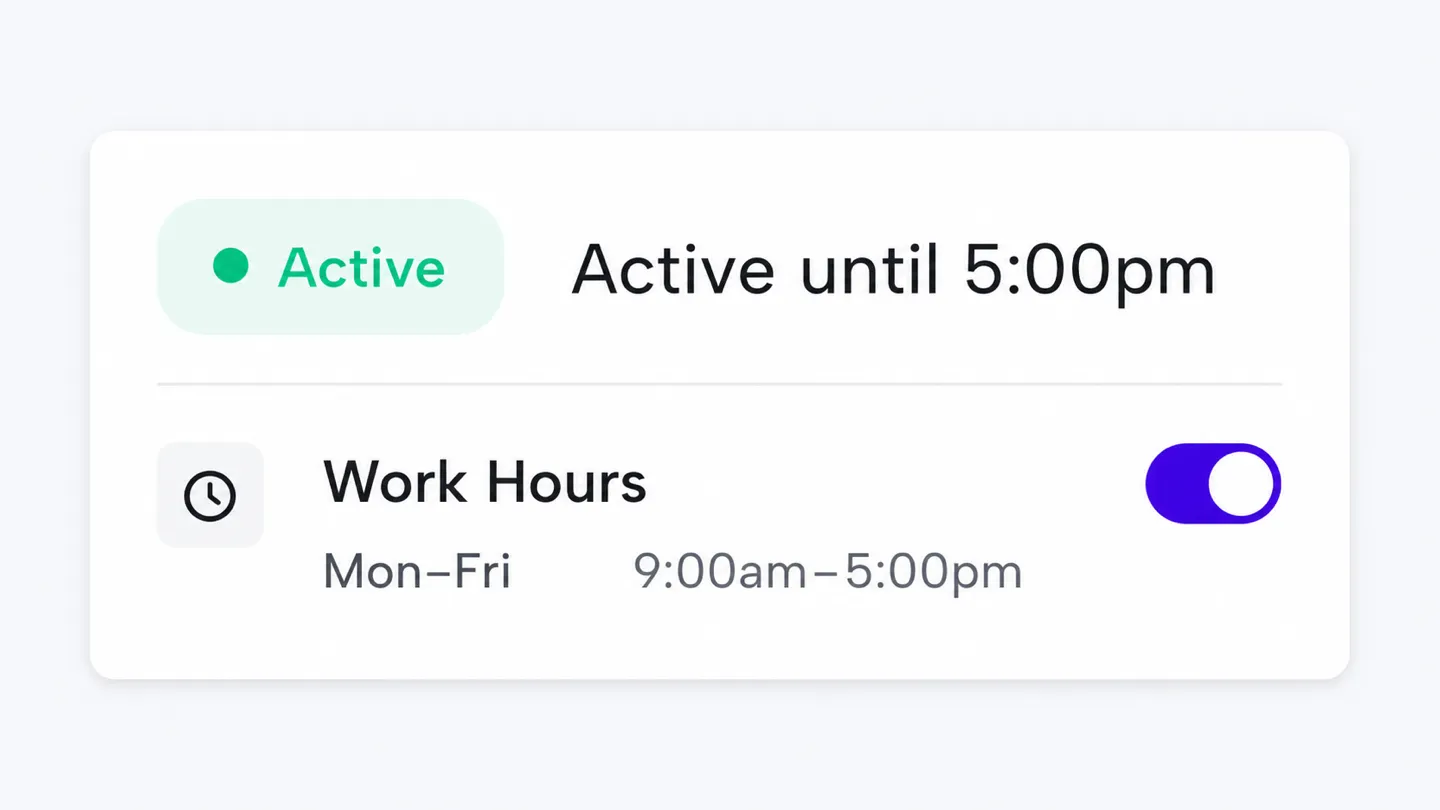
Idle Pilot keeps your status consistent while devices are offline.
No hardware. No admin approval.
One clear guide now owns each supporting intent
A comparison of safe options and trade-offs.
Read guideSee device activity, keep-awake apps, browser tools, and off-device schedules side by side.
Read guideCompare cloud scheduling with device hacks.
Read guideLearn how availability differs from custom status and Do Not Disturb.
Read guideQuick answers before you connect
The safest alternatives avoid installing anything on your device or workspace. Cloud-based schedulers like Idle Pilot maintain your Slack session from remote servers, so there are no USB devices, local scripts, or browser extensions for IT security tools to flag. You connect once from a desktop browser and the schedule runs automatically.
No. Unlike traditional workspace integrations, cloud-based presence scheduler alternatives like Idle Pilot connect using your own Slack web session. There is no bot to install, no admin approval needed, and nothing visible to other workspace members. This makes them a practical option when your workspace restricts third-party app installations.
Presence schedulers use your own Slack session, similar to keeping a browser tab open. You should follow your workspace policies and Slack terms of service. Since no bot or app is installed in the workspace, there is typically nothing for admins to approve or manage.
Yes. Cloud-based alternatives run entirely on remote servers and do not depend on your device being powered on, connected to WiFi, or running any local software. Your Slack status stays active during your chosen work hours regardless of your laptop state.
Look for three things: reliability (cloud-based beats device-dependent), policy safety (no hardware or scripts to flag), and ease of control (ability to pause, adjust hours, or turn off instantly). Avoid options that require admin approval or access to your messages.
Last updated: July 2026
Connect once, set your hours, and stop worrying about device hacks.