Microsoft Teams presence
 Follows your schedule
Choose different Work Hours by day, your time zone, and an optional Lunch Break.
Microsoft Teams presence
Microsoft Teams can show Away when your computer is idle, locked, or asleep. Selecting Available corrects the current status, but it does not keep the laptop connected after it closes. For availability during saved work hours with the laptop closed or off, Idle Pilot runs the schedule from the cloud. Connect Teams once from desktop Chrome, then set your hours and breaks.
One-time setup in desktop Chrome with the Idle Pilot extension. You can remove the extension after linking Teams.
3-day free trial · No credit card
7 days if you connect within 3 hours of sign-up
Idle Pilot costs $9 per month or $60 per year. The trial starts when you connect Teams.
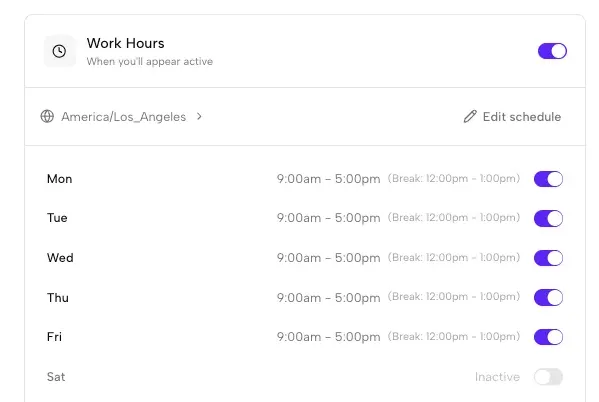
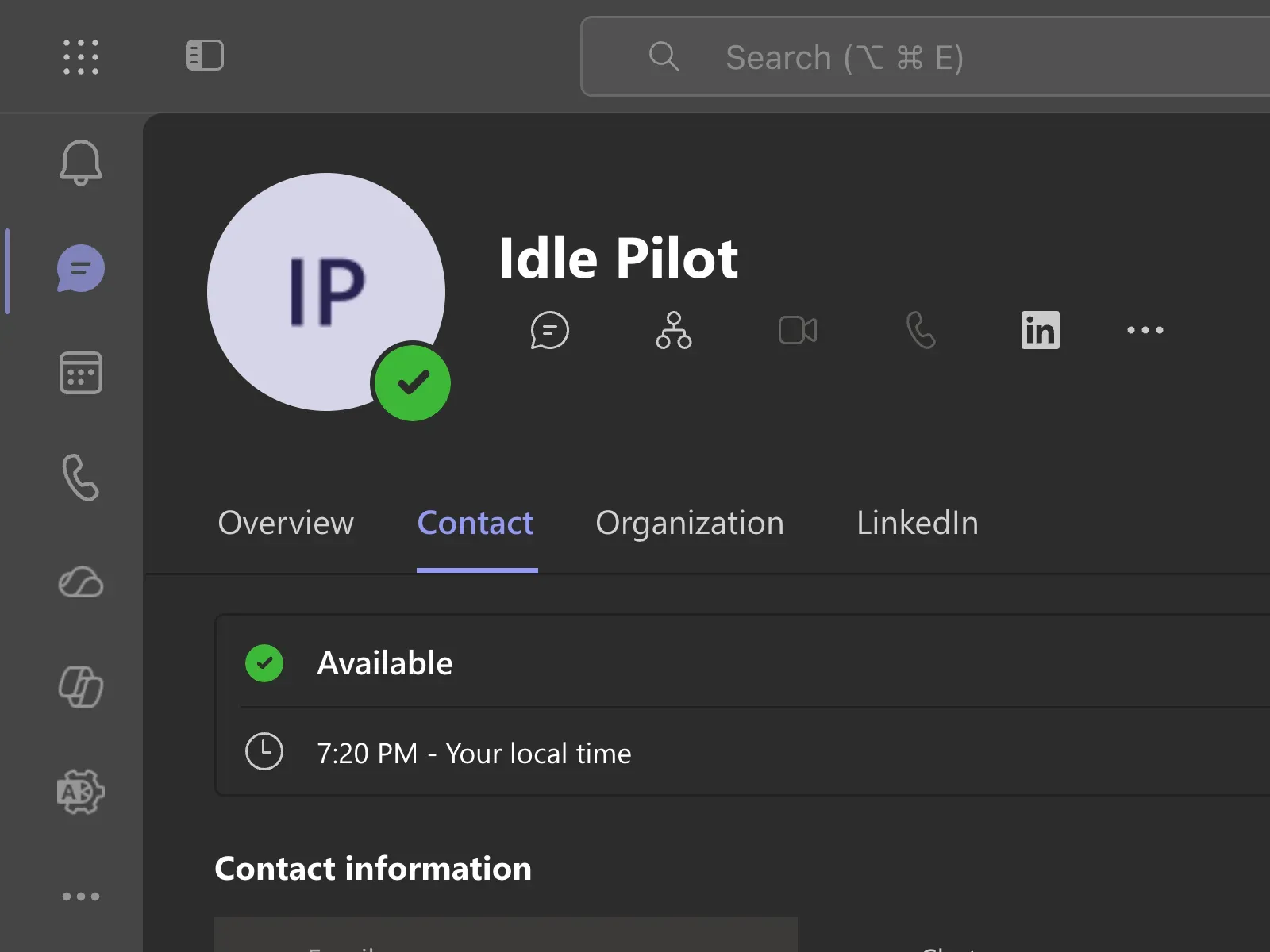
Microsoft Teams shows green when your presence is Available. You can select Available manually, keep a device awake, or use a cloud schedule. The first two still depend on Teams running through an active device session. Idle Pilot makes availability follow the Work Hours you choose instead of laptop activity.
Set the schedule once and it continues when your laptop closes, sleeps, loses its connection, or powers off. When Work Hours end—or when you pause or disconnect Idle Pilot—the scheduled presence stops.
Choose different Work Hours by day, your time zone, and an optional Lunch Break.
Teams presence no longer depends on an open tab or an always-on laptop after setup.
Pause your schedule or disconnect your Microsoft Teams account immediately.
Choose the method
Every method people actually use — including the free ones — with what each depends on. Manual and device-based approaches still rely on an awake, unlocked computer; a cloud schedule does not.
| Method | Laptop closed or off | Device must stay on | Cost | What admins may see |
|---|---|---|---|---|
| Select Available in Teams Open Teams, select your profile picture, select your current status, and choose Available. It fixes a wrong status instantly, but Teams sets presence from device activity, so it can flip back to Away within minutes once you stop typing. Useful for a temporary correction, not a repeatable work-week schedule. | No | Computer | No extra tool cost | Teams presence; device and app activity may be visible on managed devices |
| Allow activity detection in Teams for Web In Teams for Web, open Settings, then Notifications and Activity, then Presence. Turn on Keep my current status when I’m active outside of Teams on the web and allow the browser permission. This detects real activity in other tabs and apps. It cannot keep a powered-off laptop active. Microsoft does not offer a duration for Available. | No | Computer | No extra tool cost | Teams presence; device and app activity may be visible on managed devices |
| Keep the screen awake On Windows, set screen and sleep timers to Never under Settings → System → Power & battery. On macOS, extend the display-off timer in Lock Screen settings. This removes the sleep and lock triggers, but Teams still marks you Away after a few minutes without keyboard or mouse input. Do not weaken company lock policies for a green dot — and expect battery cost on laptops. | No | Computer | No extra tool cost | Teams presence; device and app activity may be visible on managed devices |
| Use the Teams mobile app Teams shows you Available while the mobile app is open in the foreground. When the phone locks or the app moves to the background, presence starts sliding back to Away. Works for a quick check-in, not for hours of availability. | Laptop may close; phone must remain active | Phone | No extra tool cost | Teams presence; device and app activity may be visible on managed devices |
| Mouse jigglers and keep-awake scripts Hardware jigglers, cursor utilities, and scripts simulate input so Teams keeps seeing activity. They need the laptop awake, unlocked, and powered the whole time, and simulated input can be visible to endpoint monitoring on managed devices. Reliability and risk vary widely by category — compare before trusting one. | No | Computer | Varies by hardware or software | Installed software, connected devices, or input patterns may be visible |
| Schedule availability with Idle Pilot Connect Microsoft Teams once, choose Work Hours for each day, and let Idle Pilot maintain Available presence from the cloud. Your laptop is no longer the thing keeping the schedule alive. Best for repeatable Work Hours that should continue after the laptop closes. | Yes, after linking | No local device | $9/month or $60/year | Account sessions and network origins may be visible |
Sources: Microsoft status settings and Teams presence. Device visibility depends on your employer’s systems.
A local keep-awake tool cannot run on a powered-off laptop. After the first desktop connection, Idle Pilot runs your Work Hours on its servers. The schedule continues when the laptop closes. It does not make a green dot evidence of work or guarantee that your employer permits the connection.
Evaluating hardware or local tools? Compare mouse-jiggler alternatives. Looking for an app? Compare apps that keep Teams active.
Three steps
The setup defines when Idle Pilot should maintain Available presence. After that, the schedule runs without an open Teams tab or an always-on computer.
Choose Microsoft Teams and connect the account whose availability should follow your schedule. Idle Pilot manages presence only, not messages or files.
Set different start and end times by day, confirm your time zone, and add an optional Lunch Break. Turn off any day that should not run.
Idle Pilot maintains Available presence during those Work Hours whether your laptop is open, closed, asleep, offline, or off. Pause or disconnect it whenever you choose.
3-day free trial · No credit card
Microsoft Teams presence is the availability state shown beside your profile. Available is the green state. It is separate from the custom status message you can write for coworkers. Idle Pilot manages presence during the Work Hours you choose; it does not write messages or change what you tell your team.
A schedule does not make every Teams signal disappear: calls, meetings, calendar state, and organization settings can still affect what coworkers see. Idle Pilot's job is specific—it maintains your Available presence during the hours you configured instead of relying on laptop activity.
Looking for the timeout details? Read why Microsoft Teams shows Away.
Product proof
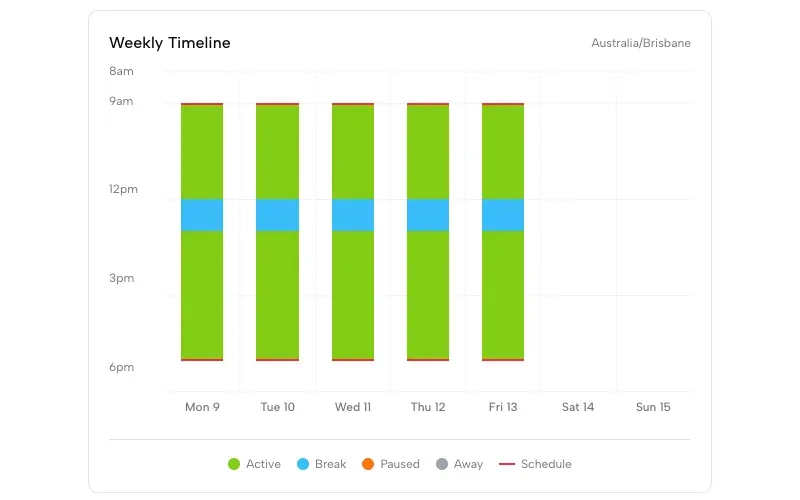
Activity History shows when scheduled presence was active, paused for a break, or stopped. You can verify what Idle Pilot did without checking Microsoft Teams throughout the day.
Choose different start and end times for each active day.
Add a recurring window when scheduled availability should pause.
Pause scheduled presence when a selected out-of-office status is detected.
Review the timeline of active, break, paused, and stopped periods.
Want the complete product tour? Explore all Idle Pilot features.
Idle Pilot manages presence only. It does not read chats, DMs, channels, teams, files, or other Microsoft Teams content. Review security and permissions.
While you are working, use Teams normally and correct a wrong status by selecting Available. For saved work hours with the laptop closed or off, connect Teams to Idle Pilot once and set your schedule. It runs from the cloud.
Yes. Idle Pilot runs from the cloud during your scheduled hours, so your Teams availability does not depend on the laptop remaining open, awake, online, or powered on.
Microsoft says Teams shows Away when the mobile app is in the background. An open phone app is not a guarantee of all-day availability. Idle Pilot does not require the phone app or laptop to stay open after setup.
Teams can change your availability when it no longer detects an active session. Idle Pilot keeps your status available during the work hours you choose. See the full Microsoft Teams Away-status explanation.
No. Idle Pilot is limited to presence. It does not read chats, DMs, channels, teams, files, or other Microsoft Teams content.
There is no universal timer that covers every device and session. Microsoft says Teams changes to Away when a desktop is idle, locked, or asleep, and when the mobile app is in the background. A status duration cannot be set for Available.
Yes. Work Hours can have different start and end times for each enabled day. You can also add an optional Lunch Break, turn individual days off, and use Vacation Mode to pause scheduled presence when an out-of-office status is detected.
Pause Idle Pilot, update the schedule, or disconnect Microsoft Teams from the dashboard. The controls take effect immediately.
Last updated:
3-day free trial · No credit card
Idle Pilot maintains Slack or Microsoft Teams availability from the cloud during saved Work Hours.