1. Connect your Slack workspace
Connect your workspace once with the Idle Pilot extension. No Slack bot or admin install, and you can remove the extension after setup.
Desktop Chrome and the setup extension are required
Slack marks desktop users away after 10 minutes of inactivity. Selecting Active fixes the current dot, but keeping a tab open does not remove the activity rule. To keep availability during saved work hours with the laptop closed or off, Idle Pilot runs a schedule from the cloud. Connect Slack once from desktop Chrome, then choose your daily hours and breaks.
One-time setup in desktop Chrome with the Idle Pilot extension. You can remove the extension after linking Slack.
3-day free trial · No credit card
7 days if you connect within 3 hours of sign-up
Idle Pilot costs $9 per month or $60 per year. The trial starts when you connect Slack.
Choose the method
Every method people actually use — including the free ones — with what each depends on. Local fixes need an awake, unlocked computer; a cloud schedule does not.
| Method | Laptop closed or off | Device must stay on | Cost | What admins may see |
|---|---|---|---|---|
| Set yourself to active When Slack marks you away, select your profile picture and choose Set yourself as active. The green dot returns instantly, but Slack flips back to away after about 10 minutes without device activity on desktop. The fastest fix for a wrong status. It does not hold through lunch, a walk, or a closed laptop. | No | Computer | No extra tool cost | Teams presence; device and app activity may be visible on managed devices |
| Keep the screen awake Set screen and sleep timers to Never (Windows: Settings → System → Power & battery; macOS: Lock Screen settings). That removes the sleep and lock triggers, but Slack still needs recent input to reset its 10-minute inactivity timer. Never weaken company lock policies for a green dot — use approved settings only. | No | Computer | No extra tool cost | Teams presence; device and app activity may be visible on managed devices |
| Keep the Slack tab in the foreground Chrome discards inactive tabs within minutes and Safari freezes background tabs, which pauses the Slack heartbeat. A dedicated, visible Slack window avoids tab suspension — while you are actually at the computer. Stops helping the moment you step away; the inactivity timer still applies. | No | Computer | No extra tool cost | Teams presence; device and app activity may be visible on managed devices |
| Use the Slack mobile app Slack shows you active while the mobile app is open in the foreground. Once the app closes or the phone locks, iOS and Android background limits let presence lapse. Good for a check-in from the couch, not for scheduled hours. | Laptop may close; phone must remain active | Phone | No extra tool cost | Teams presence; device and app activity may be visible on managed devices |
| Mouse jigglers and scripts Jigglers and keep-awake scripts simulate input so the activity timer never expires. They require the laptop to stay awake, unlocked, and online the entire time, and simulated input can be visible to endpoint monitoring on managed devices. Reliability and risk vary by category — compare before trusting one. | No | Computer | Varies by hardware or software | Installed software, connected devices, or input patterns may be visible |
| Schedule presence with Idle Pilot Connect Slack once, set Work Hours for each day, and the schedule maintains your presence from the cloud — laptop open, closed, asleep, or off. Best when availability should follow your hours instead of your keyboard. | Yes, after linking | No local device | $9/month or $60/year | Account sessions and network origins may be visible |
Source: Slack’s availability rules. Your employer’s systems determine device visibility.
Slack’s desktop client needs a running computer. A keep-awake app does not run after the computer powers off. Idle Pilot keeps the saved Work Hours on its servers after the first desktop connection, so the laptop can close or switch off.
Slack says desktop users become away after 10 minutes of inactivity. On mobile, leaving or closing the app can change availability. Keeping a browser tab open does not replace the activity rule. Read the phone and desktop explanation or the presence guide for the distinction between availability and a custom status.
Sometimes you are making lunch, taking a walk, lying down, running an errand, or just done performing work for a green dot. If Slack presence is being used like a time clock, the dot starts judging moments that are not real work.
Idle Pilot makes the dot follow your schedule instead of your mouse. You decide the hours you want to appear available, and your laptop no longer gets to expose every break, battery timeout, or closed-lid moment.
Trust signals
Schedule your presence once and stop babysitting Slack
Keep your status green during the hours you choose, even if your laptop is closed.
No always-on laptop. A cloud worker keeps your presence consistent.
Connect with your own account. No workspace app or bot required.
Does not read messages. Pause or change your schedule anytime.
Sleep, locked screens, and tab suspensions reset the activity timer
When your device sleeps or locks, Slack loses the heartbeat signal.
Background tabs can pause Slack and trigger auto-away.
Switching between devices can leave gaps in presence signals.
Follow your chosen hours without keeping your computer on. Your workplace rules still apply.
Breaks when your laptop sleeps or the tab is suspended.
Require local access and can conflict with IT policies.
Works when your laptop is closed and stays aligned with work hours.
Does Caffeine keep Slack active? Compare mouse jiggler alternatives for Slack
Local fixes can delay away status, but they cannot cover every device state
Your computer may still be powered on, but security policies, power saving, or a suspended Slack client can stop useful activity signals. Extending a lock timer only delays the problem and may violate company policy.
Sleep pauses local apps and normally drops their network connections. A desktop utility cannot maintain Slack presence while the operating system has suspended it.
Airplane mode, a tunnel, a VPN reconnect, or lost Wi-Fi prevents local Slack clients from reaching Slack. A cloud schedule is independent of that local connection.
Do not weaken screen-lock or device-security rules just to protect a green dot. Use approved settings, clear availability expectations, or an off-device schedule that matches your real working hours.
Keep Slack active from the cloud -- no device tricks needed:
Takes about 2 minutes on desktop
Connect your workspace once with the Idle Pilot extension. No Slack bot or admin install, and you can remove the extension after setup.
Desktop Chrome and the setup extension are required
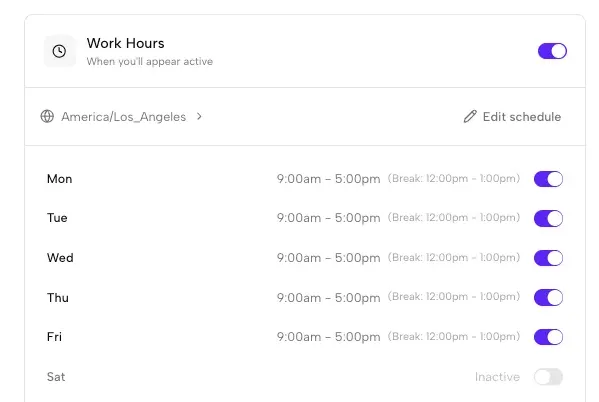
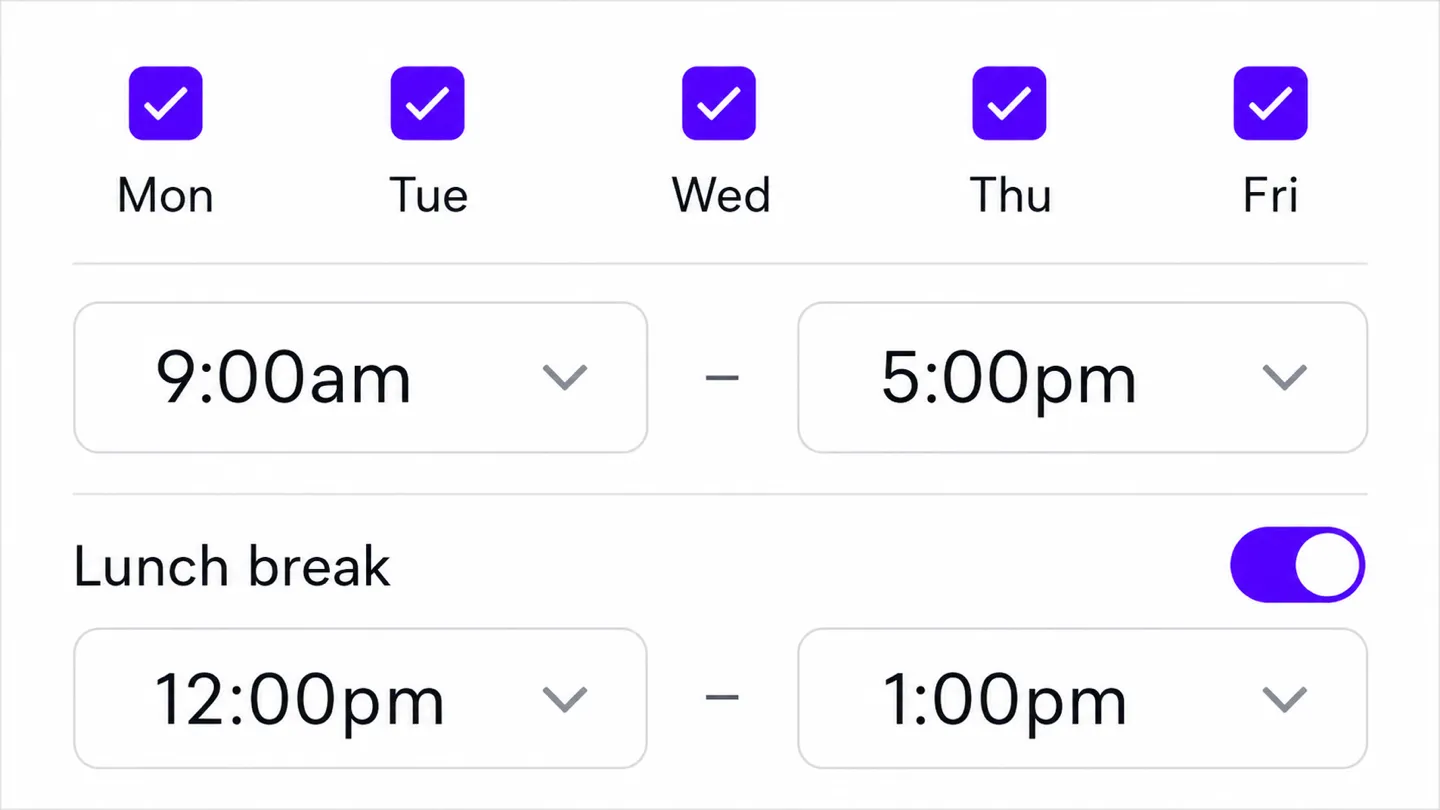
Set the days and hours you want to appear active. We handle time zones automatically.
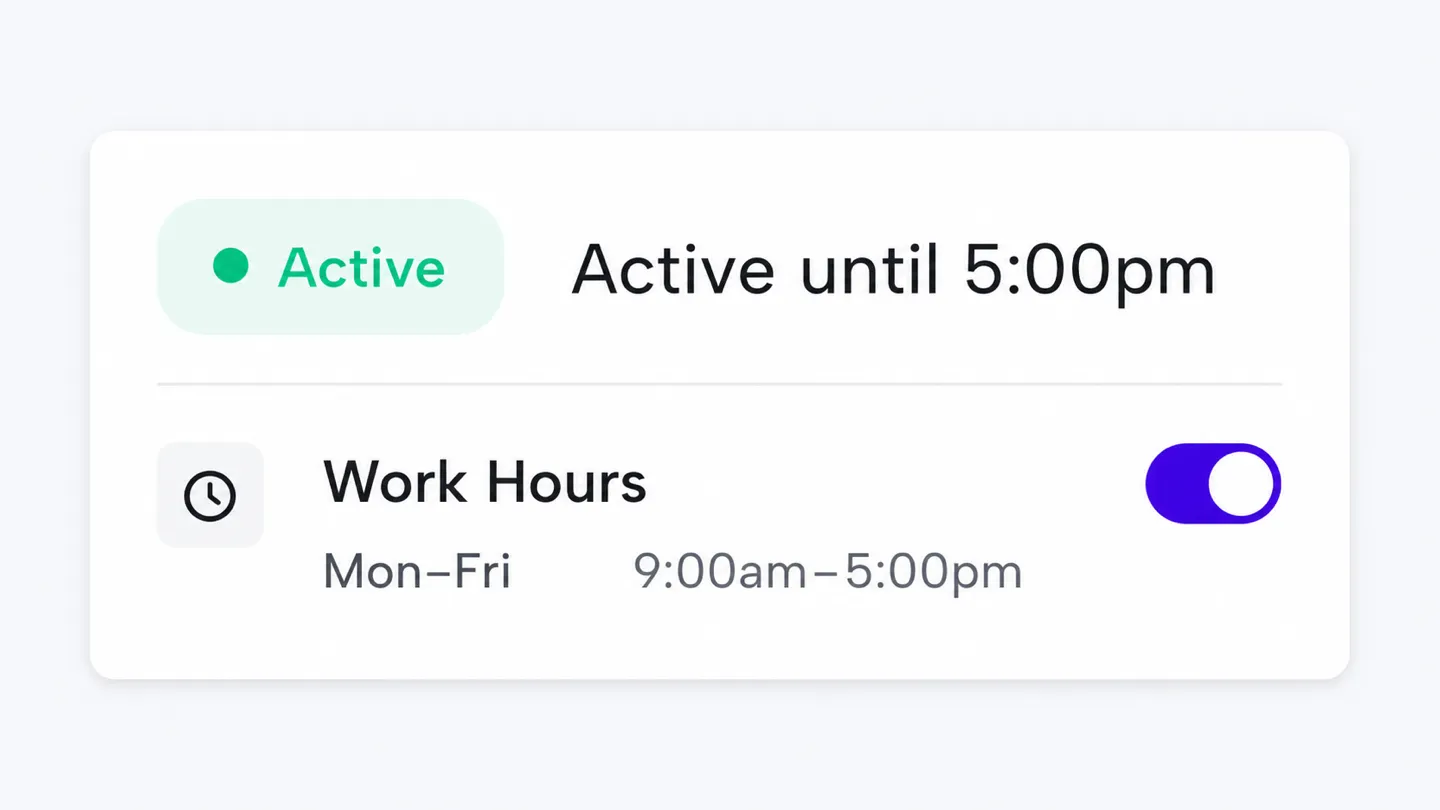
Close your laptop or lose internet. Idle Pilot keeps your status green during your scheduled hours.
3-day free trial · No credit card · Stay green during your scheduled hours
Auto-away, managed devices, mobile behavior, and Slack presence each have a clear owner
See the official 10-minute desktop rule, common triggers, and practical fixes.
Read guideUnderstand what Idle Pilot can access and what company IT may be able to see.
Read guideLearn why iPhone and Android can show you away after you leave or close Slack.
Read guideUnderstand availability, status, client connections, and device-specific behavior.
Read guideQuick answers before you connect
Yes. Idle Pilot keeps your Slack presence active from the cloud during the schedule you choose, so your green dot does not depend on constant typing, mouse movement, or keeping Slack in front of you.
Yes. Local Slack clients disconnect when your laptop sleeps, but Idle Pilot maintains your Slack session from remote servers. It can keep you active during chosen work hours whether your laptop is open, asleep, closed, offline, or powered off.
It can be. Idle Pilot does not move your mouse, but account sessions and network origins may be visible to administrators or security tools. Check your employer’s rules before connecting.
Idle Pilot does not install a workspace bot. You use a desktop Chrome extension to link your account, then can remove it. Administrators or security systems may see the connection. Use Idle Pilot only where your organization's policies allow it.
You can pause or change your schedule at any time from the Idle Pilot dashboard, and sign out instantly. Changes take effect immediately, giving you full control over when you appear active.
Last updated:
Idle Pilot maintains Slack or Microsoft Teams availability from the cloud during saved Work Hours.