
Requires a desktop browser for the one-time connection.
1. Connect Slack or Microsoft Teams
Choose one platform and securely connect your account for presence scheduling.
Desktop Chrome and the setup extension are required
Looking for a mouse jiggler alternative for Slack or Microsoft Teams? A cloud-based schedule keeps you available during chosen hours even when your laptop is closed.
One-time setup in desktop Chrome with the Idle Pilot extension. It needs no hardware and uses presence-only access.
3-day free trial · No credit card
7 days if you connect within 3 hours of sign-up
Idle Pilot costs $9 per month or $60 per year. The trial starts when you connect Slack or Teams.
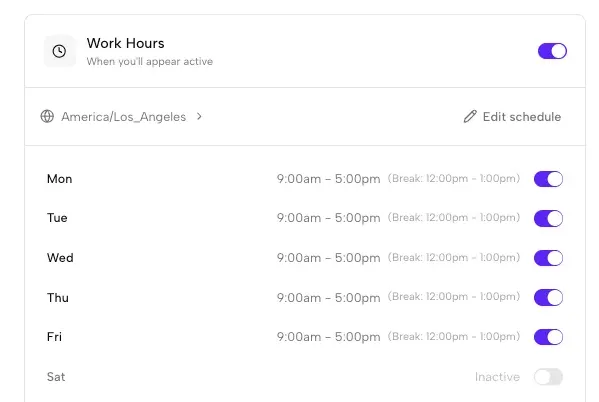
Mouse jigglers became popular when remote work went mainstream. The premise is simple: a USB device or software program simulates mouse movement to prevent your computer from going idle. Slack and Microsoft Teams users often hope that keeping the computer awake will also keep their presence green. But device activity and platform presence are not the same thing, and the workaround stops when the device sleeps or shuts down.
Most people looking for a mouse jiggler are trying to stop Slack or Microsoft Teams from changing their presence every time they step away, stop typing, or close the laptop.
The goal is straightforward: stay available during the work hours you choose. Mouse jigglers simulate input on your computer. Idle Pilot maintains presence from the cloud for the platform you connect.
Hardware mouse jigglers show up as USB HID devices in system logs. IT departments monitoring endpoint security can detect them, and many organizations have explicit policies prohibiting devices that simulate user activity. Software jigglers face similar issues: endpoint detection and response (EDR) tools like CrowdStrike, SentinelOne, and Carbon Black flag processes that generate synthetic input events. What starts as a simple convenience can become an HR conversation.
Beyond the policy risk, mouse jigglers do not maintain platform presence directly. They keep a computer awake, while Slack and Microsoft Teams calculate availability from their own connections and activity signals. A jiggler can leave the screen on while a platform still changes your presence, and it cannot help after the laptop sleeps or shuts down.
Alternatives to mouse jigglers fall into three categories, each with different trade-offs for people who need Slack or Microsoft Teams to stay available while they are away from the keyboard.
Caffeine-style apps like Amphetamine (Mac) or Caffeine (Windows) prevent your computer from sleeping. They do not simulate mouse movement, but they still require your laptop to remain open and powered on. Keeping a device awake also does not guarantee that Slack or Microsoft Teams will keep the same presence state.
Browser extensions attempt to keep a Slack or Microsoft Teams web session active. They depend on an open browser and loaded tab, and can stop when the computer sleeps, the browser suspends the tab, or the network disconnects.
Cloud-based presence schedulers like Idle Pilot take a different approach. Instead of fighting your device's power management, they maintain presence from remote servers. You connect either Slack or Microsoft Teams, choose your work hours, and the schedule continues when your laptop is closed, offline, or powered off.
| Method | Laptop closed or off | Device must stay on | Cost | What admins may see |
|---|---|---|---|---|
| Hardware mouse jiggler | No | Computer | Hardware price varies | USB devices may be recorded; optical movers can avoid a USB data connection but may still be observable |
| Software mouse jiggler | No | Computer and local process | Free or paid; varies | Software processes and simulated input may be recorded |
| Keep-awake app | No | Computer | Free or paid; varies | Installed app and device power state may be recorded; staying awake does not guarantee Slack or Teams availability |
| Cloud schedule for Slack or Teams | Yes, after linking | No local device | $9/month or $60/year | Account sessions and network origins may be visible; workplace policy still applies |
If you work in an environment with endpoint monitoring, a mouse jiggler adds a device-level risk that deserves a policy review. If your work also involves travel, commuting, or any scenario where your laptop is not continuously open and connected, device-based solutions will always have gaps.
People who need to keep Slack active and those who need to stay green on Microsoft Teams benefit most from schedule-based presence. The common thread is presence that follows chosen hours instead of laptop state or mouse movement.
If Slack is the problem, the Slack auto-away guide explains that platform's behavior. If Microsoft Teams changes to Away unexpectedly, use the Microsoft Teams Away status guide. Those diagnostic pages stay separate from this comparison of mouse-jiggler alternatives.
Last updated:
Off-device availability
Schedule-based presence keeps you active without device hacks
Cloud-based presence is not automatically approved. Use it only where your organization's policies allow it.
Keeps your status active even if your laptop is closed.
Connect with your own account. No workspace bot required.
No message access. Just availability scheduling.
Compare what needs your computer running. Check your workplace rules before using any option.
Hardware and scripts can trigger policy and security issues.
Breaks when the device sleeps or a tab suspends.
Works when devices are offline and stays aligned with work hours.
Unlike hardware jigglers that need your laptop running, here's how the cloud-based alternative works:
Takes about 2 minutes on desktop
Choose one platform and securely connect your account for presence scheduling.
Desktop Chrome and the setup extension are required
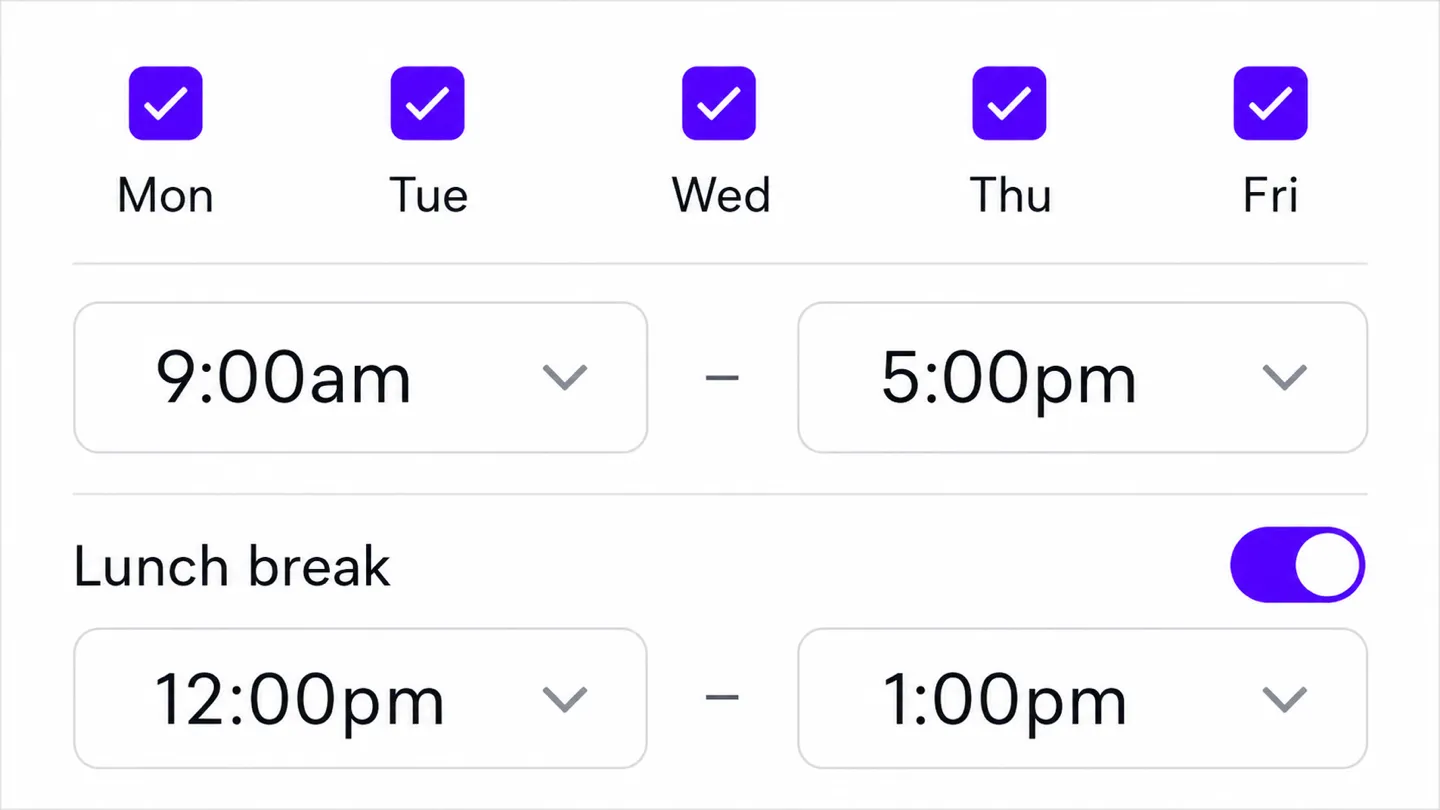
Set the days and hours you want to appear active. We handle time zones automatically.
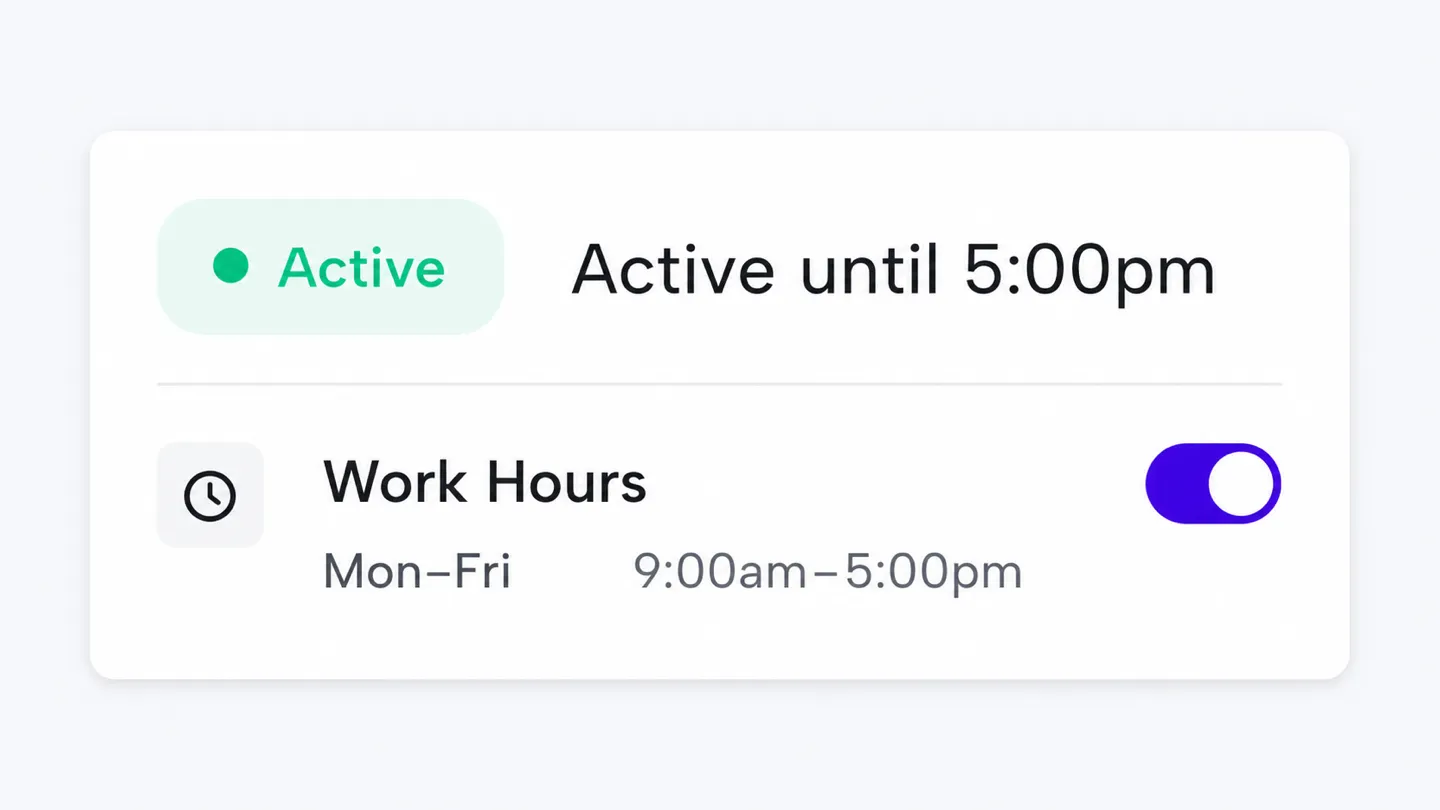
Idle Pilot keeps your status green during your schedule.
3-day free trial · No credit card
Each guide links back here for scheduling
A dedicated guide to schedule-based Slack presence.
Read guideA dedicated guide to staying green on Microsoft Teams.
Read guideUnderstand how Idle Pilot handles a connected platform session.
Read guideA focused comparison of off-device schedules and local workarounds.
Read guideQuick answers before you connect
Hardware and software jigglers can leave device-level signals that workplace monitoring may record. A cloud scheduler avoids simulated input on the local device, but you should still follow your organization's policies and assume connected platform sessions may be visible to the provider or workspace administrators.
A cloud presence scheduler maintains your connected Slack or Microsoft Teams presence during chosen work hours without simulating mouse movement. It solves a different problem from keep-awake software because the schedule runs away from your device.
The Teams dot shows availability; it does not explain what caused it. Managed-device tools may record USB devices, software processes, or activity patterns. Some physical jigglers move the mouse without a USB data connection. That does not make them invisible or approved. What an employer can see depends on its tools and policies.
Yes, if it is cloud-based. Idle Pilot runs from remote servers and keeps your connected Slack or Microsoft Teams presence active during scheduled work hours even when your laptop is closed or offline.
Idle Pilot connects to your own Slack or Microsoft Teams account for presence scheduling rather than installing mouse-jiggler hardware. Workspace policy and account permissions can still vary, so review your organization's rules before connecting any service.
3-day free trial · No credit card
Idle Pilot maintains Slack or Microsoft Teams availability from the cloud during saved Work Hours.