· 11 min read

Slack Status Automation: Complete Guide for Remote Teams and Power Users

Learn how to automate Slack status using schedules and triggers (calendar, focus time, on-call), when automation helps (and when it backfires), and how to keep signals accurate without turning Slack into surveillance.

Learn how to automate Slack status using schedules and triggers (calendar, focus time, on-call), when automation helps (and when it backfires), and how to keep signals accurate without turning Slack into surveillance.

Direct Answer: To automate Slack status, use schedules and triggers (calendar events, focus time blocks, on‑call rotations) to set a status, Do Not Disturb, and sometimes presence without manual updates. Automation helps when it matches reality and your team agrees on expectations; it backfires when it turns into “always online” pressure or a monitoring substitute. Start with Slack’s built‑in options, then add narrowly scoped tools only if you truly need them.

Slack Status Automation: Complete Guide for Remote Teams and Power Users

If your team lives in Slack, you’ve probably seen both sides of presence:

  • The person who is “online” 18 hours a day
  • The person who is always gray but somehow gets everything done

Somewhere between those extremes is a healthier idea: Slack status automation—using tools and schedules so your presence reflects reality without you constantly micromanaging your green dot.

This guide breaks down what Slack status automation actually means, common use cases for remote teams and power users, the tools available (built‑in and external), and a practical blueprint for rolling it out without creeping into surveillance territory.

If you’re specifically worried about staying green, the flagship guide on how to keep your Slack status active all day covers the presence side in more depth. Here, we’ll zoom out and talk about automation as a system.


How to Automate Slack Status (3 Practical Methods)

Most people searching “automate Slack status” want one of these outcomes:

  1. Set status automatically from your calendar (meetings, OOO)
  2. Automate focus and off-hours signals (DND schedules + focus statuses)
  3. Keep availability signals consistent during work hours (when auto‑away creates friction)

Quick decision table

GoalBest starting pointWhat it automatesWhen it’s not enough
Meeting contextCalendar integrationStatus (and sometimes DND)Auto-away is the real problem
Focus blocksDND schedule + clear statusDND + status wordingExpectations still reward constant availability
Team clarityWritten norms + lightweight defaultsExpectations + repeatable rulesNorms aren’t agreed or enforced
Presence stabilityAccount-level scheduling (where allowed)Presence during work hoursIt’s used to appear online off-hours

Slack Status vs Presence vs DND (Don’t Mix These Up)

Slack has three different “signals,” and automation often fails because people expect one to behave like another:

  • Status: the text/emoji you set (manually or automatically).
  • Presence: the active/away indicator (green/gray), driven mostly by clients and activity.
  • DND: notification rules, not proof of work.

If you’re trying to reduce “are you around?” pings, automating status + DND is often enough. If the problem is “Slack keeps showing me away even when I’m working,” that’s a different problem.

What Is Slack Status Automation, Really?

When people say “Slack status automation,” they usually mean one or more of these:

  • Automatically updating your custom status (text + emoji) based on your calendar
  • Turning Do Not Disturb on/off according to focus blocks
  • Keeping your Slack presence active during defined work hours, even if you step away
  • Using workflows or tools to reflect on‑call schedules, rotations, or time zones

The goal isn’t “Slack always online, no matter what.”
The goal is:

“Slack should give my team an honest, low‑friction view of when I’m around and what I’m doing.”

Done well, Slack presence automation:

  • Reduces constant “are you around?” pings
  • Makes it easier to protect deep work
  • Gives managers and teammates a realistic picture of availability

Done badly, it can feel like micromanagement at scale.


Why Remote Teams Care About Slack Status Automation

In distributed teams, you don’t have hallway hellos or a visual sense of who’s in the office. Slack becomes the default presence layer.

Common scenarios where automation helps:

  • Multiple time zones

    • Colleagues aren’t sure if 8 a.m. your time is “fair game” to DM.
    • People forget who starts or ends early.
  • Hybrid schedules

    • Some days you’re at home, some in an office.
    • Your hours may shift with commutes, daycare, or client calls.
  • Power users juggling multiple roles

    • You’re part IC, part manager.
    • You need focus blocks, but you can’t just vanish.
  • On‑call and rotation work

    • Different people own incidents at different times.
    • You want clear signals without manually flipping statuses every shift.

Without automation, the burden falls on each person to:

  • Remember to change statuses constantly
  • Explain every DND block
  • Babysit Slack so they don’t look “away” when they’re actually working

That gets old fast.


Built-In Ways to Automate Slack Status

Before you reach for external tools, it’s worth using what Slack already offers.

Calendar-based status updates

Slack can connect to popular calendars (like Google Calendar and Outlook) to:

  • Set a status when you’re in a meeting
  • Optionally switch on Do Not Disturb
  • Clear the status when the meeting ends

This helps teammates understand:

  • “Busy in a meeting, I’ll respond later.”
  • “Out of office today.”

It does not, by itself, keep your Slack presence active all day. It’s more about context than presence.


Automate Slack Status Based on Your Calendar (Meetings + OOO)

If your main goal is “my status should update when I’m in meetings,” calendar-driven automation is usually the most defensible place to start:

  • It explains why you’re slower to respond.
  • It’s easy for teammates to interpret.
  • It doesn’t depend on device hacks.

Use it for:

  • Meeting blocks (“In a meeting”)
  • Out-of-office (“OOO today”)
  • Partial-day breaks that are safe to disclose (“Back at 3:30”)

If you need deeper focus protection, pair calendar statuses with DND schedules and clear response-time norms.

Do Not Disturb schedules

You can define recurring DND windows:

  • Quiet evenings and weekends
  • Specific focus blocks

This doesn’t automate your green/gray state, but it does automate how noisy Slack is and when people expect a response.

Simple workflows and reminders

Slack workflows and reminders can nudge people to:

  • Update status at the start of the day
  • Set OOO before vacations
  • Flip back from DND after focus time

This is technically Slack status automation, but it still relies on humans to follow through.


Where Built-In Automation Falls Short

Native tools are a good starting point, but there are limits.

They don’t stop auto-away

Calendar‑driven statuses and DND don’t prevent Slack from marking you away if:

  • Your computer sleeps
  • Your Slack tab disconnects
  • You step away from the keyboard for a longer stretch

If the main problem is “I look away even when I’m really working,” you need something closer to Slack presence automation, not just smarter statuses.

They don’t help on locked-down devices

If you’re on a locked‑down corporate laptop:

  • You may not be able to install additional apps
  • Aggressive sleep policies can still kick you to “away”

The guide on Slack presence in locked‑down laptops covers why native tricks often aren’t enough there.

They don’t scale easily for teams

Relying on individuals to maintain complex status workflows means:

  • Inconsistent behavior across the team
  • Confusion when someone forgets to update their status
  • A constant background tax on everyone’s attention

At some point, teams start asking for more predictable, policy‑level automation.


External Tools to Automate Slack Status

Once you go beyond Slack’s built‑ins, you’re looking at three broad categories.

1. Devices and scripts that simulate activity

These are the classic “keep Slack active” hacks:

  • Mouse jigglers (hardware dongles)
  • Auto‑move scripts
  • Browser extensions that refresh Slack

If your only goal is “never go away,” they can work. But they come with risks:

  • Often violate acceptable use or security policies
  • Live on your corporate device, which is heavily monitored
  • Can require invasive permissions or untrusted code

The security‑oriented analysis in Not all stay‑online tools are safe explains why these worry IT teams.

2. Workspace apps and bots

Some tools install a visible Slack app that:

  • Reads your calendar
  • Manages statuses for the whole workspace
  • Sets DND or OOO for groups

These can be powerful for admins, but:

  • Usually require admin approval to install
  • Often request broad scopes (channels, messages, files)
  • Are overkill if you just want more control over your own presence

3. Cloud-based Slack presence automation

This is where cloud-based, account-level presence schedulers fit (for example, tools like Idle Pilot).

Instead of:

  • Running on your laptop, or
  • Living as a big bot in your workspace

…they connect as a small, account‑level app and keep your presence active on a schedule you choose, even if a specific device disconnects.

Key properties:

  • No desktop app on corporate machines
  • No browser extension watching every tab
  • No noisy bot in channels
  • Can keep presence steady even if a device sleeps or disconnects

If you want a deeper comparison between this pattern and hardware, the article on cloud-based alternatives to mouse jigglers lays things out side by side.


Designing a Slack Status Schedule That Actually Helps

A lot of anxiety around automation comes from trying to be “always on.” A better approach is:

“Automate Slack so it mirrors your realistic working day, not your fear.”

Practical guidelines:

  • Use work hours, not 24/7 windows

    • For example, 9:00–17:30, Monday–Friday.
    • Add light buffer if you often start a bit early or stay a bit late.
  • Respect time zones

    • Make sure your schedule maps to your local time.
    • If you move or travel, update it.
  • Pair automation with clear communication

    • Put your working hours in your profile.
    • Use statuses like “Heads down, replies slower” during focus blocks.
  • Don’t use automation to fake availability when you’re truly offline

    • For vacations or sick days, pause automation and set a clear OOO.

Used this way, Slack status automation becomes a tool for clarity, not for pretending you’re working when you’re not.


Blueprint: Slack Status Automation for Remote Teams

Here’s a simple rollout plan you can adapt.

1. Agree on principles first

Before installing anything, align on goals:

  • Slack should reflect real working patterns.
  • Automation is allowed, surveillance is not.
  • People should not feel pressured to be “green” at all hours.

This is a good moment to share culture pieces like:

2. Use native integrations where they make sense

  • Connect work calendars to Slack for meeting statuses.
  • Encourage Do Not Disturb schedules for focus and off‑hours.
  • Set common conventions for status emojis and wording.

3. Add presence automation for people who need it

For roles where auto‑away causes real friction (support, account managers, customer‑facing leads), consider an account-level, schedule-based tool:

  • Each person connects their own Slack account.
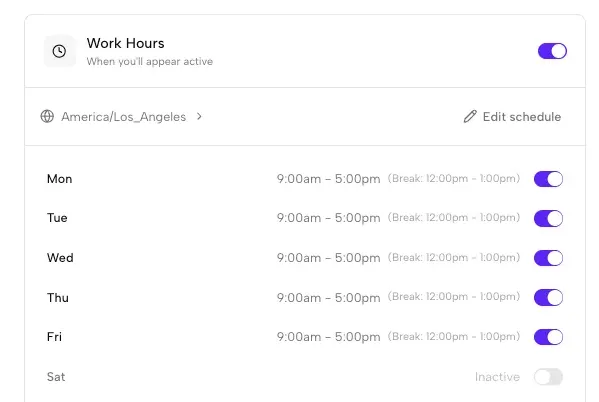
  • They define a schedule that matches their working hours.
  • Presence stays steady during that window, even if devices disconnect.

This is Slack presence automation, not a blanket rule that everyone must be green at all times.

4. Document and revisit

  • Capture your team’s expectations in a shared doc or handbook.
  • Revisit quarterly to make sure automation is helping, not adding pressure.

Where Account-Level Presence Schedulers Fit (and Where They Don’t)

Account-level schedulers are designed for a specific slice of the problem:

  • You want to keep your Slack status active during working hours.
  • You’re tired of babysitting Slack or breaking IT rules.
  • You’re okay with automation as long as it reflects reality.

They are not designed to:

  • Fake that you’re working on weekends or vacations
  • Track detailed activity or time spent in Slack
  • Manipulate teammates into thinking you’re online when you’re not

If you use this approach as a way to stop fighting with auto‑away and get back to real work, it can be a helpful layer in a broader Slack presence strategy.


Conclusion: Automate Slack to Serve People, Not the Other Way Around

Slack status automation can either:

  • Become yet another way to pressure people into being “always on,” or
  • Make it easier for humans to do focused work without constantly worrying about a green dot.

The difference is in how you design and use it.

If you’re a manager or power user:

  • Start with principles and communication, not tools.
  • Use built‑in features where they make sense.
  • Reach for cloud-based presence automation when auto‑away becomes a real drag on trust and productivity.

If you want more of the tactical, step‑by‑step side, pair this with:

Used thoughtfully, Slack status automation becomes a quiet background system that supports sane working hours instead of eroding them.


FAQ: Slack Status Automation

What is Slack status automation?

Slack status automation means using tools and schedules so your Slack presence, statuses, and Do Not Disturb windows update automatically based on your working hours, calendar events, and focus time—instead of you manually flipping everything all day.

Can I automate Slack status based on my calendar?

Yes. Slack’s native calendar integrations can automatically set statuses like “In a meeting” or “Out of office” and optionally toggle Do Not Disturb. For presence (green vs away), you’ll need additional tooling, such as a cloud-based, account-level scheduler that keeps you active during your working hours.

Is Slack status automation the same as monitoring?

No. Automation is about updating your status and presence based on rules you choose. Monitoring is about tracking your behavior and activity. Presence schedulers focus on the former—helping you keep a steady, honest presence window—without recording what you’re doing in Slack.

How do we introduce Slack status automation without burning people out?

Lead with principles. Make it clear that:

  • Automation is there to reduce stress, not to demand 24/7 responsiveness.
  • People are not expected to be green outside their normal hours.
  • Schedules should reflect realistic availability, not “hero hours.”

Then implement light, schedule-based tools and revisit regularly to make sure they’re actually helping.

How do I automate Slack status?

Start with a simple trigger (calendar or a daily schedule) and a simple output (a clear status message + optional DND). Then add guardrails:

  • Use real working hours, not 24/7 windows
  • Pause automation for vacations and sick time
  • Write down response-time expectations so the team doesn’t treat a status as a performance metric

How do I automate Slack status for focus time?

Use a recurring focus block plus DND, and set a status that explains what it means (“Focus block, replies slower until 11:30”). The automation should reduce interruptions, not create pressure to look busy.

  • slack
  • remote work
  • productivity
  • teams
Share:
Back to Blog

Related Posts

View All Posts »