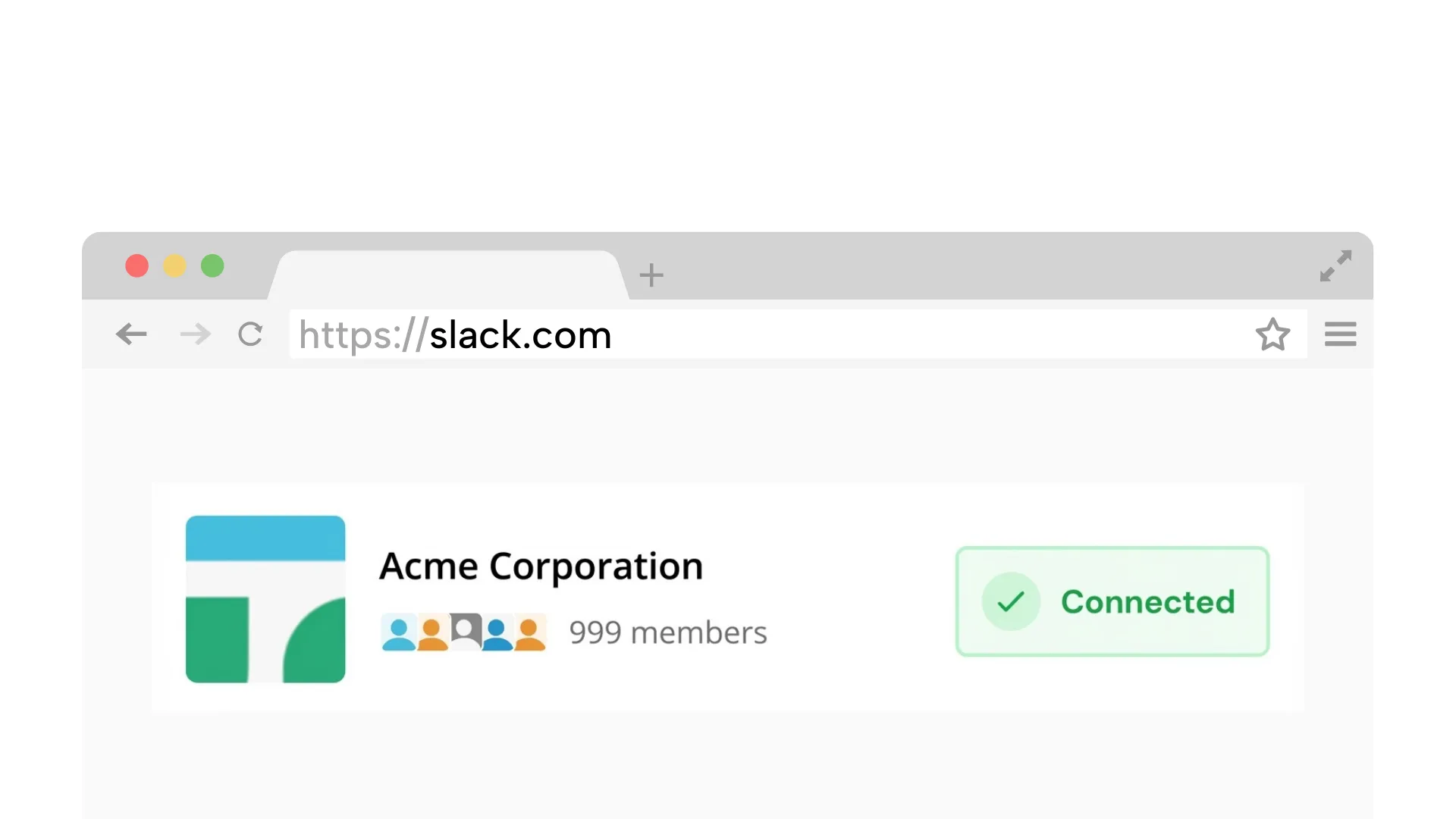
Requires a desktop browser to connect Slack once.
1. Connect your Slack workspace
Securely link your workspace. We simulate a browser connection, so you do not need to install any apps or bots.
On Chrome? 1-click connection (optional)
Stop false away signals by combining quick fixes with schedule-based presence.
No admin approval | Presence only | No desktop app
Keep presence consistent during work hours.
Reliable fix
Quick fixes plus a schedule-based fallback that stays consistent
Keep your status green during planned work hours.
Presence stays consistent even when your laptop is closed.
Connect with your own account. No workspace bot required.
Does not read messages. Just maintains availability signals.
Start with device and browser settings before schedule-based coverage
Increase sleep timers within policy to keep Slack connected.
Use a stable desktop or web client during work hours.
Disable settings that freeze the Slack web tab in the background.
The permanent fix for Slack auto-away takes about 2 minutes:
A cloud worker keeps your presence consistent during work hours
Securely link your workspace. We simulate a browser connection, so you do not need to install any apps or bots.
On Chrome? 1-click connection (optional)
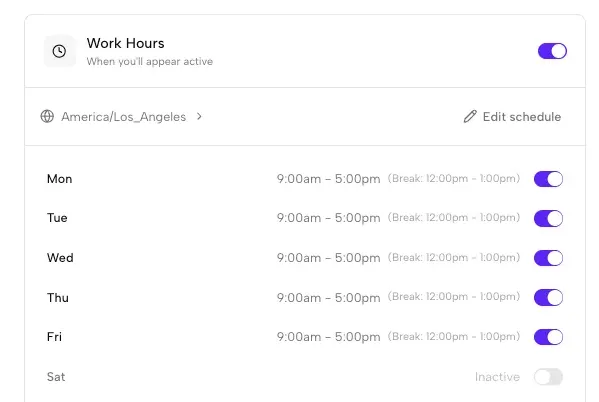
Set the days and hours you want to appear active. We handle time zones automatically.
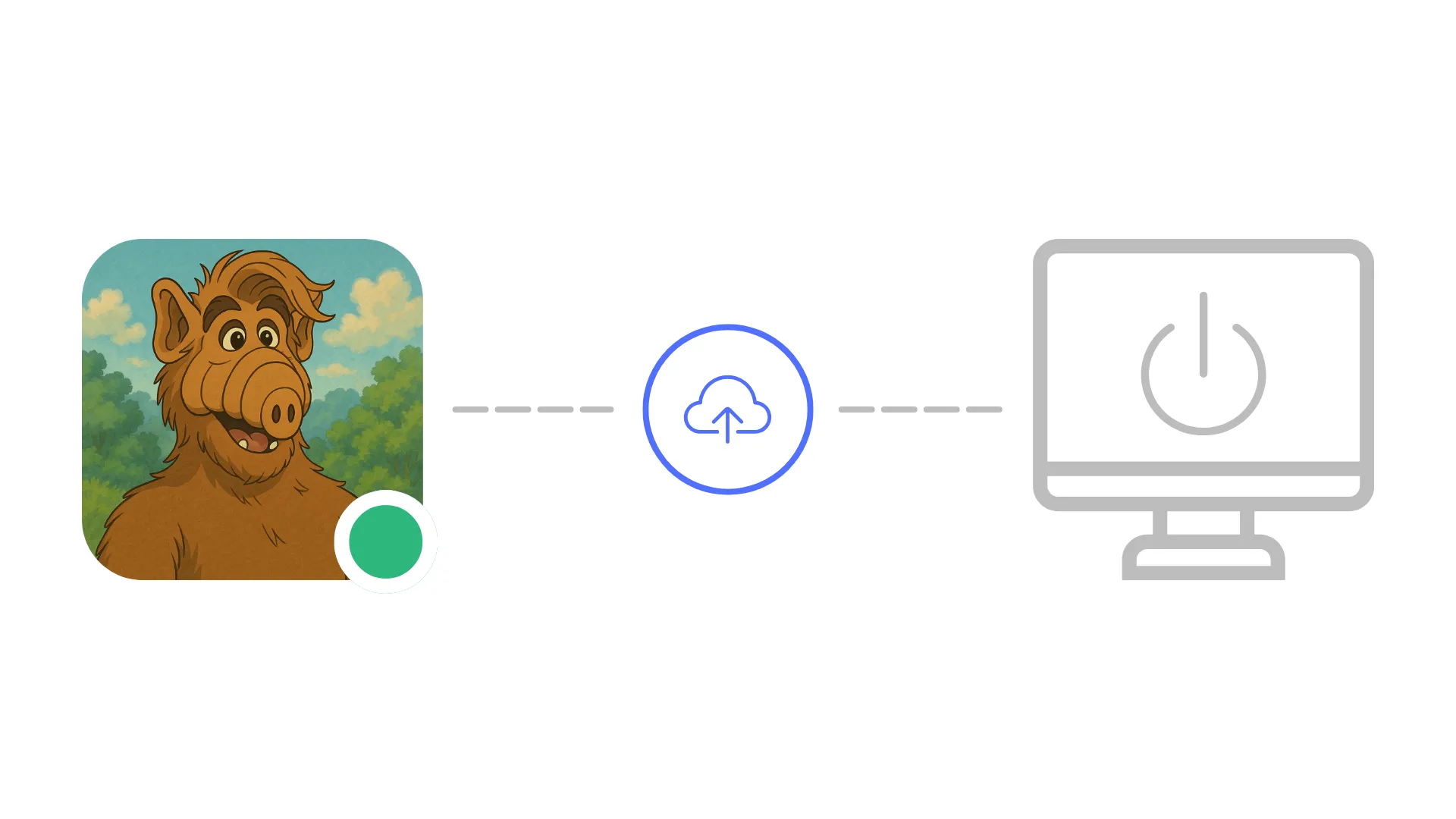
Idle Pilot keeps your status green even if your devices sleep.
Keep presence consistent during work hours.
Each guide links back here for scheduling
Screen-lock fixes without breaking security rules.
Read guideSchedule-based coverage for sleep windows.
Read guideUnderstand the timer and what resets it.
Read guideSchedule-based ways to keep your status green.
Read guideEach OS has its own quirks. Tune these settings before reaching for a workaround.
Quick answers before you connect
Slack marks you away after roughly 10 minutes without interaction from a connected client. Device sleep, screen locks, VPN drops, and background tab suspension all trigger it. A permanent fix requires maintaining the Slack session from outside your device, which is exactly what a cloud-based presence scheduler does.
No. The most common fixes, such as adjusting sleep timers or keeping Slack in the foreground, are user-level changes. A schedule-based presence tool like Idle Pilot also requires no admin approval since it connects using your own Slack account without installing any workspace bot.
Slack does not offer an official setting to disable auto-away. You can reduce the triggers by preventing device sleep and keeping the Slack client active, but the only reliable way to eliminate auto-away is to schedule presence from the cloud so there is always an active session during your work hours.
If your laptop sleeps or locks often, local fixes will always have gaps. A cloud-based approach runs independently of your device, keeping your Slack status active during your chosen hours even if the laptop is completely off or disconnected from WiFi.
Yes. The schedule runs from cloud servers and maintains your Slack session during planned work hours. It does not depend on local device state, so it works consistently regardless of sleep settings, VPN changes, or browser tab management.
Last updated: March 2026
Connect once, set your hours, and stop worrying about the green dot.