· 9 min read
Slack Mouse Jiggler Alternatives: 7 Safer Ways
Thinking about a mouse jiggler to keep Slack green? Here are seven safer alternatives with clearer trade-offs and lower policy risk.
Direct Answer: Mouse jigglers work by simulating input to keep one device awake so Slack stays active, but they can violate policies and trigger security concerns. Safer alternatives include setting clearer response expectations, using status/DND well, adjusting sleep settings where allowed, and choosing minimal-permission, schedule-based tools when you truly need steadier presence. Pick the option that matches your company rules and your real working hours.
If you want a schedule-based option that keeps presence consistent during work hours, see Idle Pilot or start free.
For the schedule-first overview, visit the Slack presence scheduler hub.
Slack Mouse Jiggler Alternatives: 7 Safer Ways
If you’ve ever hovered over a “Buy now” button on a mouse jiggler, you’re not alone.
If you searched for how to keep Slack always active, the quickest overview (with a trade-off table) is here: how to keep Slack always active.
For a lot of remote workers, that tiny USB device promises a simple fix:
- Plug it in
- Keep your mouse “moving”
- Stay green in Slack forever
But before you strap your mouse to a spinning object or install a script that fakes activity, it’s worth asking:
- How will this look to IT if they notice?
- Does it actually solve the problem, or just hide it?
- Is there a safer way to keep Slack green without moving your mouse?
In this guide we’ll walk through why people reach for mouse jigglers, the risks they create, and seven Slack mouse jiggler alternatives that can be safer than sketchy hardware or scripts.
For a broader presence overview, pair this “7 alternatives” list with the flagship guide on how to keep your Slack status active all day and the deeper 1:1 comparison in cloud-based alternatives to mouse jigglers.
Why People Use Mouse Jigglers for Slack
Most people don’t buy a mouse jiggler because they’re lazy. They buy it because:
- Their job feels tied to a green dot
- Their laptop sleeps aggressively
- Slack auto-away flips them to gray at the worst times
The logic is simple:
“If my computer never idles, Slack won’t either.”
Mouse jigglers come in two forms:
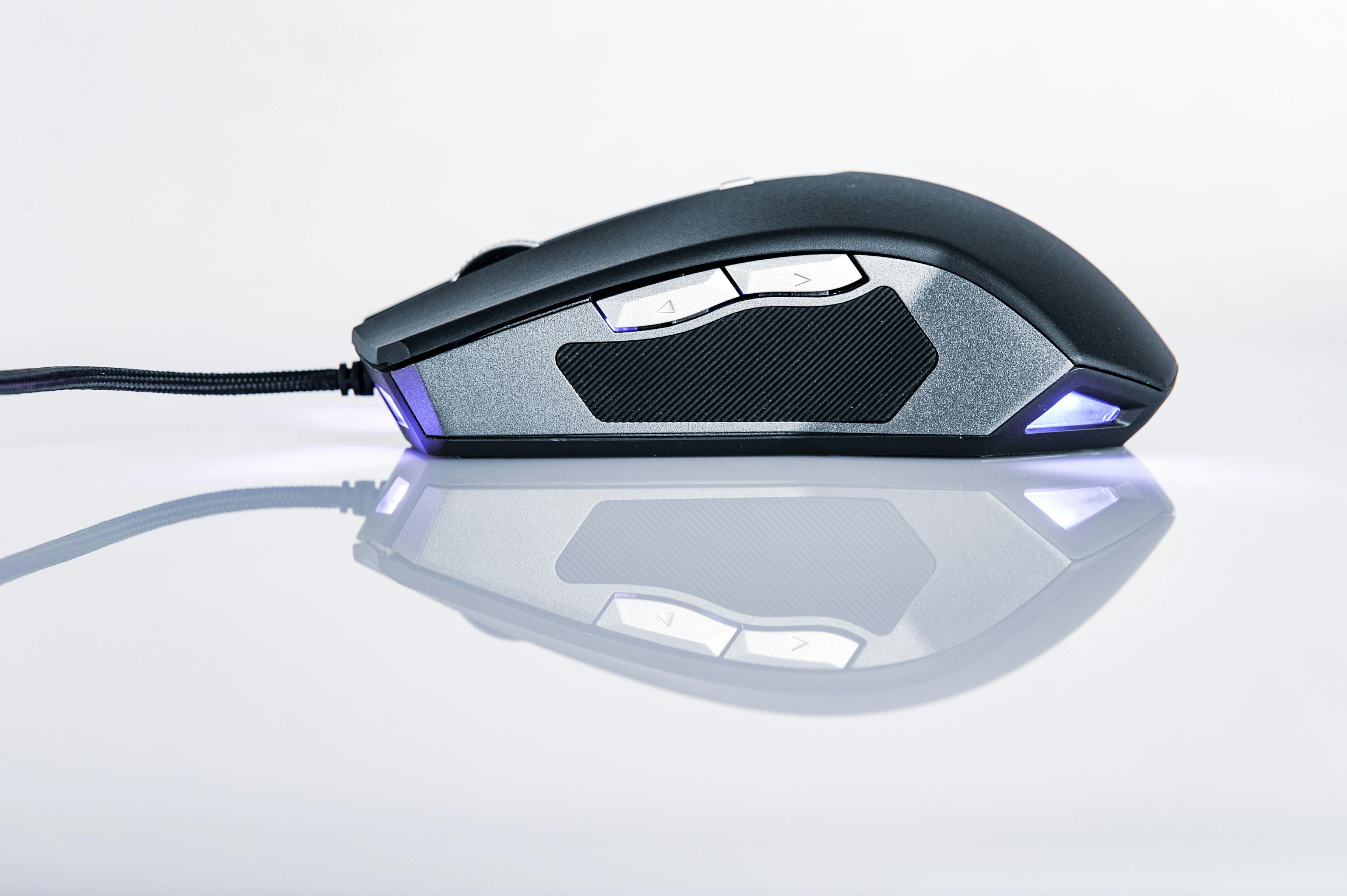
- Hardware dongles that impersonate a mouse and send tiny movements
- Software tools that programmatically move your cursor or press keys
Either way, they’re simulating input to stop your OS—and Slack—from thinking you’re away.
The Risks and Downsides of Mouse Jigglers
They work. That’s the problem.
They live on your corporate device
Whether it’s a USB dongle or a script, you’re:
- Plugging unapproved hardware into a corporate machine, or
- Running unvetted software with access to your desktop
In many companies, that’s explicitly against policy.
They can trip security tools
Endpoint detection and response (EDR) systems watch for:
- Unusual USB devices
- Suspicious scripts and automated input
If IT asks, “Why is this machine generating constant fake mouse movement?” you’re suddenly having a very different conversation than “I wanted my Slack status to match my work hours.”
The article on why not all stay‑online tools are safe digs into this in more depth.
They keep your laptop awake (and warm)
Mouse jigglers usually prevent sleep. That means:
- Fans can spin for hours
- Battery cycles increase
- Your laptop may run hotter than it needs to
It’s a lot of wear‑and‑tear for the sake of a green dot.
They don’t work when your device is truly off
If your laptop:
- Shuts down
- Loses power
- Is closed and not allowed to run with the lid down
…your mouse jiggler can’t help you. It only works while your machine is on, which is exactly when you’d like to stop worrying about Slack.
Quick comparison
| Approach | Reliability | Policy risk |
|---|---|---|
| Mouse jiggler | Medium (device dependent) | High |
| OS + Slack settings | Medium | Low |
| Schedule-based presence | High | Low |
If you want the lowest-risk option, the Slack presence scheduler hub explains how schedule-based availability works.
7 Slack Mouse Jiggler Alternatives
Here are seven safer ways to stay green in Slack, from “no tools at all” to a cloud‑based helper.
1. Use honest, detailed Slack statuses
You can’t control every presence flip, but you can give context.
Use custom statuses to say:
- “Heads down on a project, replies slower”
- “On a call / in meetings this afternoon”
- “Lunch, back at 1:00”
This doesn’t keep you green, but it reduces the stress of going gray. Pair it with the culture‑focused piece on fake Slack presence if you’re trying to shift norms.
2. Tune sleep and lock settings (within policy)
On Mac or Windows:
- Increase display and sleep timers during working hours
- Prevent sleep while plugged in, if allowed
- Avoid ultra‑aggressive battery modes during the day
This won’t eliminate auto‑away, but it makes short breaks less punishing.
The more tactical guide on stopping Slack auto-away on Mac, Windows, and web walks through OS-specific steps.
3. Use Slack on mobile strategically
Installing Slack on your phone isn’t everyone’s dream, but used carefully it can:
- Keep you reachable when your laptop reboots or updates
- Provide a backup presence signal if your desktop disconnects
To keep this from turning into 24/7 work:
- Turn off non-essential notifications
- Use Do Not Disturb on your phone outside work hours
- Consider only allowing mentions or DMs, not every channel ping
4. Set clear working hours and expectations
Sometimes the real “Slack mouse jiggler alternative” is a conversation.
Where it’s safe to do so, talk with your manager about:
- Your typical working hours
- What “responsive enough” means in your role
- When it’s okay for your status to be gray
Pair that with putting working hours in your profile and status. The article on how to stay active on Slack when working from home dives into this from a remote‑worker angle.
5. Use calendar-based status automation
Slack’s calendar integrations can:
- Set “In a meeting” or “Out of office” statuses automatically
- Toggle Do Not Disturb during certain events
This doesn’t fully replace a jiggler, but it:
- Explains why you’re not responding
- Reduces confusion when you appear away during meetings
If you want a full tour of this pattern, the guide to Slack status automation for remote teams and power users is worth a read.
6. Use an account-level cloud presence scheduler
Instead of faking mouse movement, you can:
- Decide your working hours
- Connect your Slack account to a cloud service
- Let that service keep your Slack presence active during that window
With this approach (for example, a tool like Idle Pilot):
- There’s no desktop install on your corporate laptop
- No browser extension reading every tab
- No visible Slack bot in channels
- It can keep presence steady even if a specific device sleeps or disconnects
It’s a fundamentally different pattern from a jiggler: instead of simulating local activity, you’re telling Slack directly “I’m around during these hours.”
If you choose this option, prioritize minimal permissions, clear scheduling controls, and an easy “pause” for vacations and sick days.
7. Change norms where you can
Not everyone can change culture, but in teams you influence:
- Celebrate outcomes, not “always green” behavior
- Encourage honest statuses (“picking up kids”, “doctor appointment”)
- Make it clear that you don’t expect instant replies outside of emergencies
Tools can help, but if the expectation is “never go gray,” the real fix is bigger than a mouse jiggler replacement.
The article on remote work without paranoia is a good resource if you’re trying to steer your team in that direction.
Mouse Jiggler vs Alternatives: A Simple Comparison
Here’s a simplified look at common methods:
| Method | Installs needed? | Safe for corporate devices? | Works when laptop is closed? | Notes |
|---|---|---|---|---|
| Hardware mouse jiggler | USB device | Often discouraged | No | Obvious on your desk, can trigger security reviews |
| Scripts / auto-move tools | Local software | Risky | No | Untrusted code, may violate acceptable use policies |
| Browser extensions | Extension | Depends on permissions | No | Often ask to “read and change data on all websites” |
| Workspace-wide Slack bots | Workspace app | Needs admin approval | Yes | Powerful, but visible and can be over-scoped |
| Cloud-based helper (account-level) | No desktop app | Better fit for locked-down | Yes | Schedule-based Slack presence (where allowed) |
If you’re comparing cloud options to hardware, the article on cloud service vs mouse jiggler lays out the trade‑offs in more detail.
When a Mouse Jiggler Replacement Makes Sense
A “Slack mouse jiggler alternative” is most useful when:
- You do work regular hours, but auto‑away misrepresents you
- You’re on a locked-down corporate laptop where installs are tightly controlled
- You’re worried about what IT can see or flag
In those cases, account-level cloud tools are usually a better fit than physical or software jigglers, because they:
- Don’t run on your corporate device
- Are easier to explain if someone asks (“I use a schedule-based presence tool”)
- Align more naturally with honest working hours
If you’re nervous about detection, pair this with the practical guide on whether your company can see if you’re faking Slack status and the cautious-employee walkthrough in Can you keep Slack green without getting in trouble?.
Conclusion: You Deserve Better Than a Wiggle Gadget
Mouse jigglers exist because people feel judged by a green dot. They’re a symptom of deeper issues: presence anxiety, unclear expectations, and sometimes heavy‑handed monitoring.
If you’re tempted to buy one, pause and consider:
- Can I clarify expectations with my manager first?
- Can I reduce auto‑away by adjusting settings and using honest statuses?
- If I really need automation, is there a safer, cloud-based option?
Most of the time, the answer is yes.
If you want a long‑term, low‑drama way to keep Slack green during real working hours, start with the main guide on keeping Slack status active all day and choose the least risky option that matches your policy and schedule.
FAQ: Slack Mouse Jiggler Alternatives
Is using a mouse jiggler for Slack allowed?
It depends on your company’s policies. Many organizations explicitly forbid unapproved USB devices or scripts that simulate input. Even if no one has said “mouse jiggler” by name, tools that fake activity can clash with acceptable use and security rules.
What’s the safest way to keep Slack green without a mouse jiggler?
Start with:
- Clear working hours and honest statuses
- Tuned sleep and lock settings
If you still need help, consider an account-level, cloud-based presence tool that keeps your Slack status active during work hours without running anything on your laptop.
Do cloud-based Slack presence tools look suspicious to IT?
They typically look like any other approved Slack app, but details matter:
- What scopes the app requests
- Whether it’s workspace-wide or just for your account
- How it’s described in documentation and audits
If you use a cloud tool, look for narrow scopes, clear documentation, and a schedule that matches real working hours (not 24/7 “always green”).
Related resources
- Mouse Jiggler Alternatives Hub — Compare all alternatives side by side
- What is a Mouse Jiggler? — Definition, detection risks, and how they work
- Idle Pilot vs Mouse Jiggler — Detailed feature comparison
- For Remote Workers — How Idle Pilot fits remote work schedules
- What is Slack Auto-Away? — Why Slack marks you away after 10 minutes
- slack
- remote work
- security
- productivity