· 6 min read
Best Tools to Keep Slack Status Green (Pros & Cons)
Compare the best tools to keep Slack status green—mouse jigglers, scripts, bots, and cloud schedulers—plus what’s safest in policy-heavy workplaces.

Direct Answer: Tools that keep you “green” on Slack fall into a few buckets: keep-awake apps, mouse jigglers/input simulators, browser extensions/scripts, workspace bots, and account-level cloud schedulers. The safest choice is the one you can defend in a policy/security review: minimal permissions, no invasive installs, and schedules that match real working hours. Avoid “guaranteed green 24/7” tools and anything that needs broad access just to manage presence.
If you want a schedule-based option that keeps presence consistent during work hours, see Idle Pilot or start free.
For the full schedule-first overview, see the Slack presence scheduler hub and the Slack presence scheduler alternatives hub.
Best Tools to Keep Slack Status Green (Pros & Cons)
If you’ve ever searched for Slack presence scheduler alternatives or “Slack always online tool,” you’ve probably discovered a strange world:
- USB gadgets that wiggle your mouse
- Scripts that fake keyboard input
- Browser extensions that quietly refresh Slack
- Bots that promise “guaranteed green” 24/7
They all claim to help you keep Slack green without moving your mouse, but they’re not all equally safe—or honest.
In this guide we’ll:
- Lay out the main categories of Slack presence scheduler alternatives
- Walk through pros and cons of each
- Explain where cloud-based, account-level scheduling fits (with a brief disclosure)
If you want a presence‑first overview, you can pair this with the main article on keep Slack active on a schedule and the comparison of Slack mouse jiggler alternatives.
What Makes a Good Tool to Keep Slack Status Green?
Before we name any tools, it’s worth asking: what should you look for?
For most cautious employees and managers, good tools:
Respect policies
- Don’t require unapproved installs or sketchy scripts
- Fit within acceptable use and security guidelines
Protect privacy
- Ask only for the scopes they truly need
- Don’t read messages or files just to keep you green
Support real working hours
- Keep you active during your day, not 24/7
- Make it easy to pause for vacations or sick time
Work when your laptop can’t
- Don’t rely on you keeping a device awake on your couch
- Ideally work even if your laptop is closed or asleep
With those criteria in mind, let’s look at the main families of “Slack always online” tools.
Tool categories (quick view)
- Keep‑awake apps: simple, but only work when your device stays on.
- Mouse jigglers/scripts: easy but risky for policy and security.
- Browser extensions: convenient yet often require broad permissions.
- Workspace bots: powerful, but need admin approval and wider scopes.
- Cloud schedulers: run off‑device and keep presence aligned with real hours.
If you’re weighing device hacks, start with Slack mouse jiggler alternatives and why mouse jigglers get flagged.
2. Mouse Jigglers and Input Simulators
These are the classic “keep Slack green” gadgets and scripts.
Types
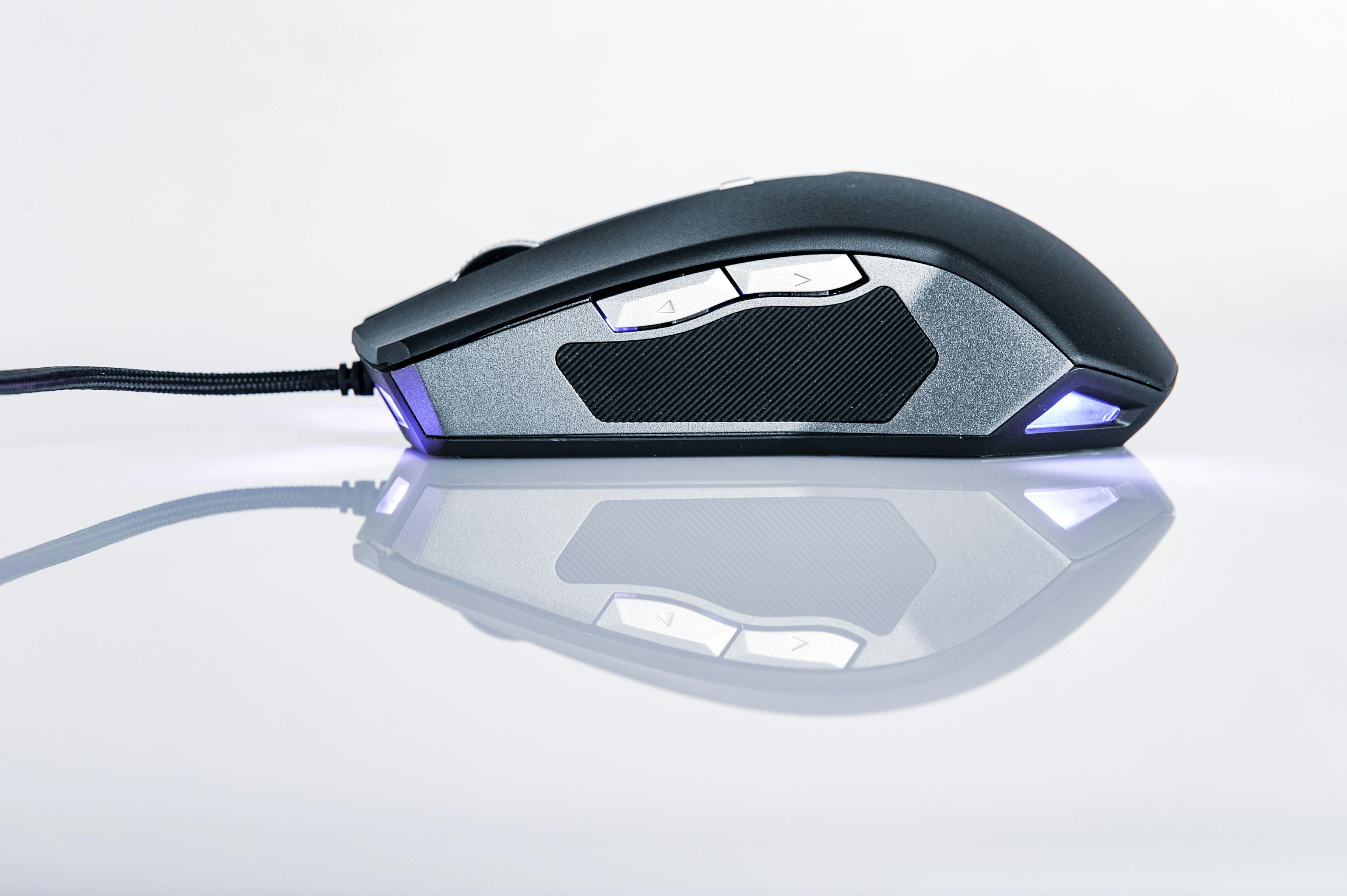
- USB devices that impersonate a mouse and send tiny movements
- Software that periodically moves the cursor or presses keys
Pros
- Cheap, easy to find
- Works with any app that reacts to input (including Slack)
Cons
- Live on your corporate device, which is heavily monitored
- Can clash with acceptable use and security policies
- Only work when your machine is on and usually unlocked
Our security-focused guide, Not all “stay online” tools are safe, exists largely because of this category.
If you’re thinking about mouse jigglers specifically, read the detailed comparison in Slack mouse jiggler alternatives before you trust your job to a USB dongle.
3. Browser Extensions and Tab Tricks
These tools live in your browser, usually as extensions.
How they work
- Periodically refresh or interact with the Slack web app
- Prevent the tab from being suspended by the browser
Pros
- Easy to install on personal machines
- Sometimes offer extra quality-of-life features (shortcuts, UI tweaks)
Cons
- Often request broad permissions (“read and change data on all websites”)
- May be blocked or heavily scrutinized on corporate devices
- Don’t help when your laptop is closed or offline
If privacy is a concern, the article on keeping Slack active without giving apps access to everything is written with you in mind.
4. Workspace Bots and Presence Apps
Some tools install a Slack app or bot into your workspace.
How they work
- Connect to your workspace as a bot user
- Manage statuses, DND, and sometimes presence for individuals or teams
- Often integrate with calendars or scheduling tools
Pros
- Powerful for team-wide coordination (out-of-office, on-call rotations)
- Can enforce consistent rules across groups
Cons
- Usually require admin approval to install
- May request broad scopes (channels, messages, files)
- Are visible in the workspace, which can feel awkward if they’re just for staying green
These can be the right answer for some teams, but they’re heavier than what many individual employees want when they search for “tool to keep Slack status green.”
5. Cloud-Based Presence Schedulers (Account-Level)
Disclosure: one example in this category is Idle Pilot (the tool this site discusses). The guidance below is about the category, not a promise that any specific vendor is right for every workplace.
How they work
- Connect directly to your Slack account via OAuth
- Run in the cloud, not on your laptop
- Keep your Slack presence active during a schedule you define
Pros
- No desktop app or browser extension on your corporate device
- Can keep presence steady even if a device sleeps or disconnects
- Easier to align with realistic working hours instead of 24/7 presence
Cons
- Require trusting a third‑party service with narrow Slack scopes
- Not a fit if your goal is to appear online outside actual working hours
The comparison in cloud service vs mouse jiggler explains why we think this pattern is a safer long‑term bet for cautious employees.
Comparing the Main Tool Types
Here’s a condensed comparison of common options:
| Tool type | Runs where? | Needs install? | Works when laptop is closed? | Policy-friendly? |
|---|---|---|---|---|
| OS “keep awake” apps | On your laptop | Yes | No | Depends on IT |
| Mouse jigglers / input simulators | Hardware/software | Yes | No | Often discouraged |
| Browser extensions | In your browser | Yes | No | Depends on permissions |
| Workspace-wide bots | In Slack workspace | No (for users) | Yes | Needs admin evaluation |
| Cloud presence tools (account-level) | In the cloud | No | Yes | Often easier to explain |
“Best” depends on your constraints:
- On a locked‑down corporate laptop? Local installs and USB gadgets may be non‑starters.
- Worried about privacy? Avoid tools that want to read all your web traffic.
- Want something you can explain as “making my working hours clearer”? Cloud presence tools are easier to justify than hardware jigglers.
What to look for in cloud presence tools
Pick tools that are schedule‑based, narrow in scope, and easy to pause. Cloud tools are especially useful on locked‑down laptops because they don’t require local installs.
How to choose the right tool
Match the tool to your constraints: policy, permissions, and whether you need presence when the laptop sleeps. If you’re unsure, start with Slack mouse jiggler alternatives.
Conclusion
The best tool is the one you can justify to your team and security policy. If you want a schedule‑first approach, start with keep Slack active on a schedule or the Slack presence scheduler hub.
FAQ
Do I need a tool to stay active on Slack?
Not always. Clear hours and status text solve many cases.
What’s safer: a mouse jiggler or a cloud presence tool?
Cloud tools with narrow scopes are usually easier to justify than device‑level hacks.
Always check your company’s policies, but in most environments, a documented Slack app is safer than a hidden USB dongle.
Do I have to tell my manager if I’m using a presence tool?
Policies vary. Many people are comfortable mentioning that they use a schedule-based presence tool so their Slack status matches their working hours more consistently. If you’re uncertain, review internal guidelines or ask a neutral question like, “Are there any restrictions on connecting individual Slack accounts to presence helpers?”
- slack
- remote work
- productivity
- tools