· Updated · Gabi R · 4 min read
How to Keep Slack Active on Your Phone When the App Closes
Slack can mark you away when its phone app closes or moves to the background. Learn why it happens and how to keep Slack active on mobile.
Quick Answer: Slack can set you to away on mobile when you navigate away from or close the app. iOS and Android restrict background activity, so phone settings cannot reliably keep Slack active after the app closes. An off-device schedule is the reliable option when availability must continue during chosen hours.
Slack’s official availability guide documents that desktop/mobile distinction.
For reliable presence that does not depend on a phone or laptop, learn how to keep Slack active with an off-device schedule. Idle Pilot needs desktop Chrome and its extension once to connect Slack; after that, the schedule runs in the cloud, even when your phone app is closed.
Why Slack Goes Away When the Phone App Closes
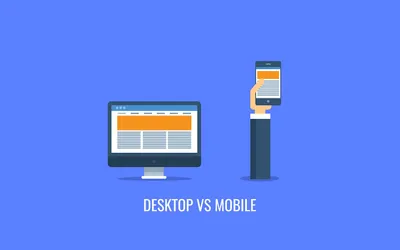
Desktop Slack can maintain a persistent connection as long as your computer is awake. Mobile Slack gets suspended by the operating system within minutes of switching apps.
| Aspect | Desktop | Mobile |
|---|---|---|
| Background persistence | Good (while awake) | Poor (OS suspends) |
| Connection stability | Stable | Interrupted |
| Time to away | 10 min inactivity | Can change when app is left |
| Battery impact | N/A | Keeping active drains battery |
Why Mobile Goes Away Faster
iOS Behavior
iOS gives apps limited background time:
- Background App Refresh provides periodic wake-ups, not continuous
- iOS prioritizes battery life over app connectivity
Even with Background App Refresh enabled, Slack can’t maintain the continuous connection needed for reliable presence.
Android Behavior
Android varies by manufacturer:
- Stock Android: Moderate background restrictions
- Samsung: Aggressive app sleeping
- Xiaomi: Very aggressive optimization
- OnePlus: Battery optimization closes background apps
Each manufacturer adds their own battery optimization on top of Android’s defaults.
Multi-Device Presence
Slack uses a unified presence model:
Activity on ANY device → Active status
No activity on ALL devices → Away status
This means:
- Active on desktop + mobile in background → Active
- Desktop sleeping + mobile active → Active
- Desktop sleeping + mobile suspended → Away
Common Scenarios
Primary Desktop, Mobile Backup
Most reliable setup. Desktop maintains presence, mobile is for notifications and occasional use.
Mobile Only
Problematic for presence. Phone in pocket = suspended app = away status. Not recommended if consistent presence matters.
Desktop + Mobile Active
Redundant for presence, but useful. If desktop sleeps, mobile might keep you active briefly before it too gets suspended.
Why “Just Use Mobile” Doesn’t Work
Some people think: “I’ll just keep Slack open on my phone.”
The problems:
- App suspension: iOS/Android will suspend it
- Battery drain: Fighting suspension drains battery fast
- Background limits: You can’t prevent OS background management
- Manufacturer variation: Works differently on every phone model
Making Mobile More Reliable
iOS Settings
- Settings > General > Background App Refresh > Enable for Slack
- Settings > Notifications > Slack > Allow Notifications (helps wake app)
- Settings > Battery > Low Power Mode > Off (when possible)
Still won’t provide desktop-level reliability.
Android Settings
- Settings > Apps > Slack > Battery > Unrestricted
- Disable manufacturer-specific optimization:
- Samsung: Settings > Battery > App power management
- Xiaomi: Settings > Battery > App battery saver > Slack > No restrictions
- Others: Find battery/power settings, exempt Slack
Results vary significantly by device.
When Mobile Presence Matters
Mobile-First Workflows
Some workers primarily use mobile:
- Field workers
- Delivery/logistics
- Healthcare workers
- Retail floor workers
For these roles, an off-device presence schedule is the device-independent option because it does not depend on mobile background behavior.
Travel and Commute
When away from desktop:
- Subway/offline: No device-based solution can reach Slack until connectivity returns
- Walking around: Mobile app suspends
- Coffee shop with laptop: Desktop works normally
The Practical Answer
- Use desktop when available: Most reliable presence
- Don’t rely solely on mobile: OS limitations make it unreliable
- Consider cloud scheduling: It can run independently of the phone or desktop during the hours you choose
If you’ve been using a hardware jiggler or app-based workaround to compensate for mobile limitations, the comparison of mouse jiggler alternatives covers options that work across devices.
FAQ
Why does Slack mobile go away faster than desktop?
Mobile operating systems aggressively suspend background apps to preserve battery life. When Slack is suspended, it cannot send activity signals to Slack servers, causing you to be marked away faster than on desktop where the app can maintain a persistent connection.
If I’m active on mobile, will I show active on desktop Slack?
Yes. Slack presence is unified across devices. Activity on your mobile app keeps you active everywhere in that workspace. However, maintaining mobile presence is difficult due to background app suspension.
How can I keep Slack active on my phone when the app closes?
Phone settings can make Slack more reliable while you use it, but they cannot guarantee background activity after you leave or close the app. For consistent presence during chosen work hours, compare an off-device schedule with your company’s policies and the phone settings above.
For more on how availability works, read the complete Slack presence guide or the broader guide to keeping Slack active.
- slack
- mobile
- desktop
- presence